Overview
Chat is the core of Praktik — a place where a legal question turns into an answer with precise citations in a minute. Unlike generic AI, every answer is based on verifiable legal sources. The result: less manual searching, more time for the work your clients pay you for.
How it works
Section titled “How it works”Praktik works in three steps:
Step 1: Question analysis and source search
When you submit a question, Praktik analyzes where to look for the answer. It searches available sources: Slov-Lex, e-Sbírka, decisions from all courts, your uploaded documents, and other official sources (more about data sources). Sources are regularly updated to ensure you have access to the latest information.
Step 2: Clarifying questions
If Praktik needs more context — either based on your original question or the data it found — it will ask you a clarifying question. This ensures the answer will be accurate and relevant.
Step 3: Generating an answer with references
Praktik generates an answer based on the information found. Where possible, the answer includes links to specific sections of legislation, court decisions, your documents, or other official sources. Not all parts of the answer need to have a reference — Praktik functions as an AI assistant — but key claims are supported by verifiable sources.
Chat controls
Section titled “Chat controls”Chat in Praktik offers several tools that allow you to customize the way you search and work with information.
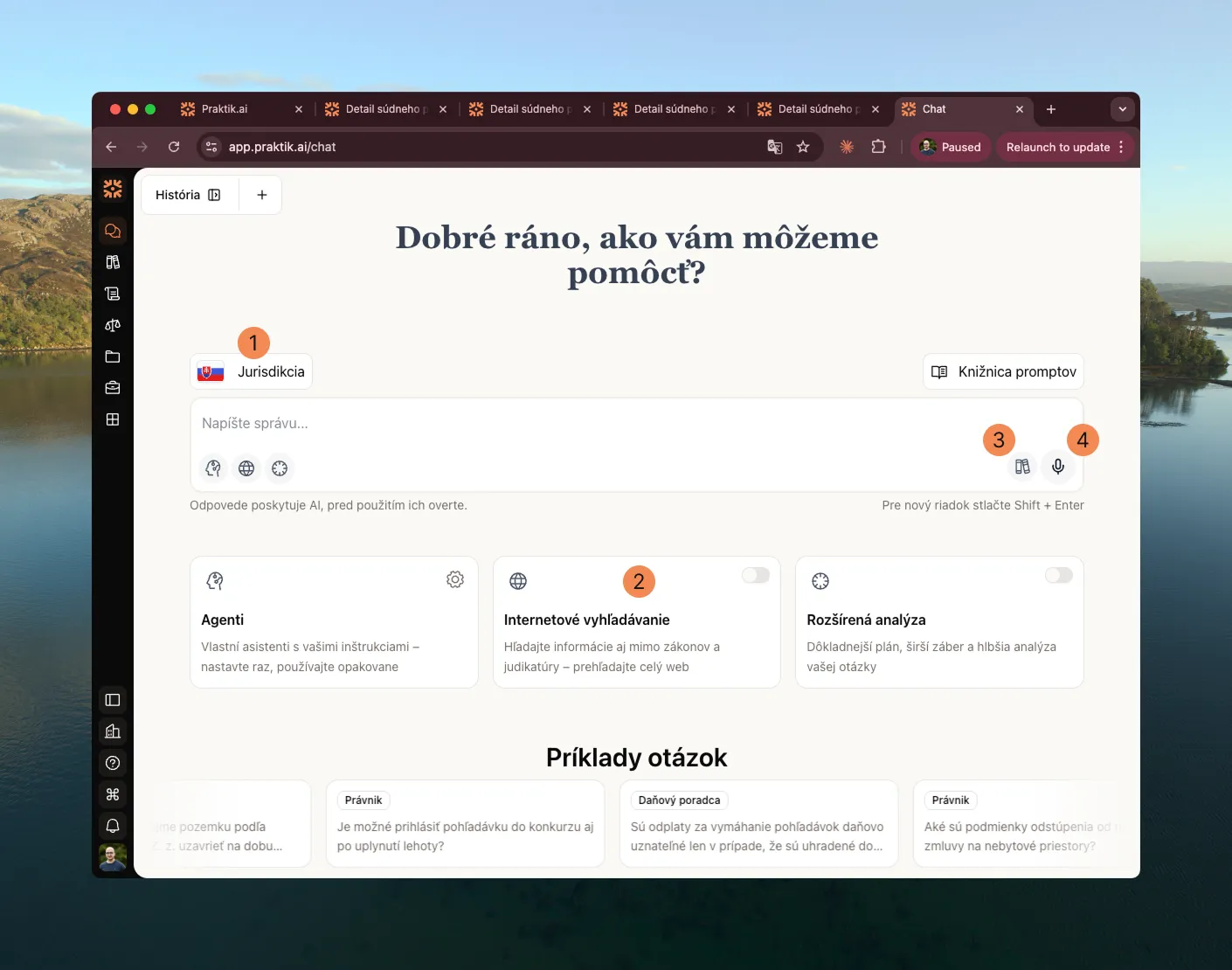
1. Jurisdiction configuration
Section titled “1. Jurisdiction configuration”Jurisdiction determines which legal systems Praktik searches in. If you select Slovak jurisdiction, Praktik will search Slovak laws and Slovak court decisions. If you select Czech jurisdiction, it will search Czech laws and Czech court decisions.
You can combine jurisdictions. For example, if you’re working on a case with a cross-border element, you can have both Slovak and Czech sources enabled simultaneously.
You can change jurisdiction during the conversation. If you’ve already received an answer based on Slovak sources and want to compare it with Czech regulations, switch the jurisdiction and ask: “How is this addressed in Czech legislation?” Praktik will search for information in the new sources and respond with references to Czech regulations.
Each reference in the answer shows which jurisdiction it comes from.
2. Internet search
Section titled “2. Internet search”By default, Praktik searches only in verified official sources — legislation, case law, and your documents. However, if you need information not found in these sources, you can enable internet search.
When to enable internet search:
- When you need current information from other official sources (e.g., government websites, ministry press releases)
- When looking for opinions, expert commentary, blog discussions, or academic articles
- When you want to expand context with unofficial sources
Once enabled, Praktik will search the internet and include information from websites in the answer. Each reference to an internet source includes a URL so you can verify the content.
3. Working with documents
Section titled “3. Working with documents”Praktik allows you to work with your own documents — contracts, files, internal guidelines, correspondence. You can either upload documents directly in chat or use documents you uploaded previously.
Uploading a new document: Click the attachment icon or drag a file into the chat window. Praktik will load the document and incorporate it into context. When you ask a question, it will also search this document and reference it in the answer.
Using previously uploaded documents: If you uploaded documents in the past (e.g., in another conversation or in central storage), you can add them to the current conversation without re-uploading. Praktik will immediately incorporate them into context.
4. Voice input
Section titled “4. Voice input”If you don’t want to type, you can speak. Click the microphone icon and Praktik will automatically transcribe your voice to text. You can review and edit the text before sending.
Useful when formulating a complex question or when you need to quickly enter a longer context without typing.
Working with the answer
Section titled “Working with the answer”When Praktik responds, you have several options for working with the answer further.
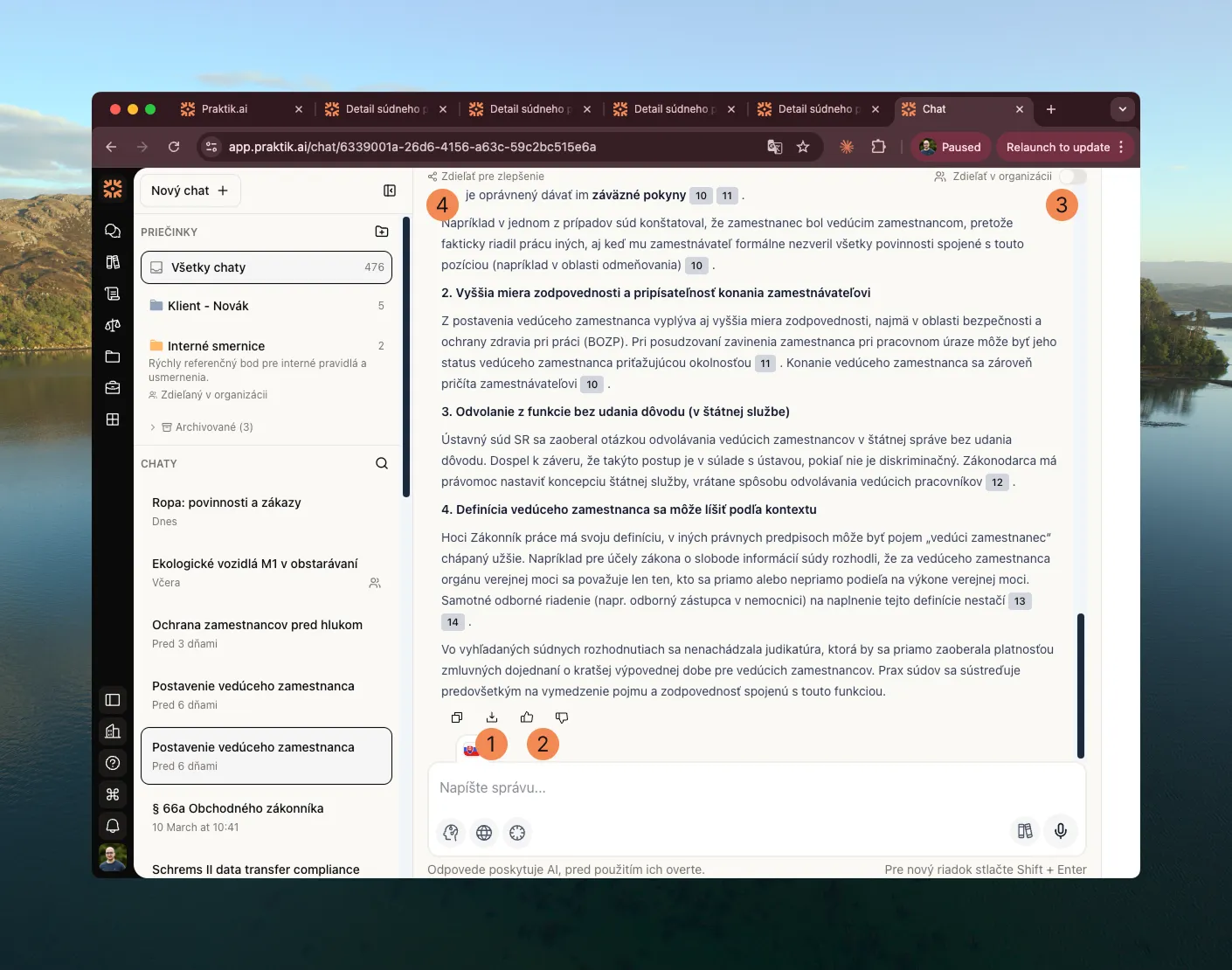
1. Download
Section titled “1. Download”You can download the answer as a PDF document. When downloading, you choose whether to export the entire conversation (all questions and answers) or just a specific answer with its corresponding question.
The downloaded PDF includes all references — links to laws, court decisions, and other sources that Praktik used. You can attach the document to internal notes, send it to colleagues, or use it as a basis for a legal opinion.
2. Rating
Section titled “2. Rating”You can provide feedback on the answer using thumbs up or thumbs down. We collect this data to have an overall view of system quality and see how changes to the system affect results. This helps us improve Praktik and identify areas where we can be more accurate.
Submitting feedback does not mean we have access to the answer or question.
3. Sharing within the organization
Section titled “3. Sharing within the organization”If you’re part of a team, you can make the conversation accessible to all organization members. Click the share button and the chat automatically becomes available to all colleagues. They can view the conversation, check references, and copy it to their own chat.
Useful for case collaboration, internal consultations, or when a junior lawyer needs feedback from a senior.
4. Sharing with support
Section titled “4. Sharing with support”If the answer contains an error or something doesn’t work as it should, send the conversation directly to the Praktik team. We’ll receive the entire conversation with full context — your question, the answer, and sources used — and can quickly respond and resolve the issue.
Before sharing a chat, check whether it contains personal data.
References — why they’re crucial
Section titled “References — why they’re crucial”Chat in Praktik works on the basis of an AI system that generates answers to your questions. We actively work to minimize inaccuracies and the rate of hallucinated information is very low. However, due to the nature of AI systems, it can never be zero.
That’s exactly why Praktik adds references to individual claims in the answer. References are links to specific sections of laws, court decisions, your documents, or other official sources. Thanks to them, you know where the information comes from and can quickly verify it.
How it works:
When you hover over a reference, a preview of the original text appears. When you click on it, you go directly to the source — a paragraph in Slov-Lex, a court decision, or your document. On the right side, you see a panel with all references used in the answer.
Important: Data in references are official sources — laws, court decisions, documents from verifiable databases. They are not AI-generated but directly cited from original sources. This is exactly what allows you to trust the information that Praktik provides.
Sidebar and organization
Section titled “Sidebar and organization”The left sidebar is used for quick navigation in history and organization of conversations.
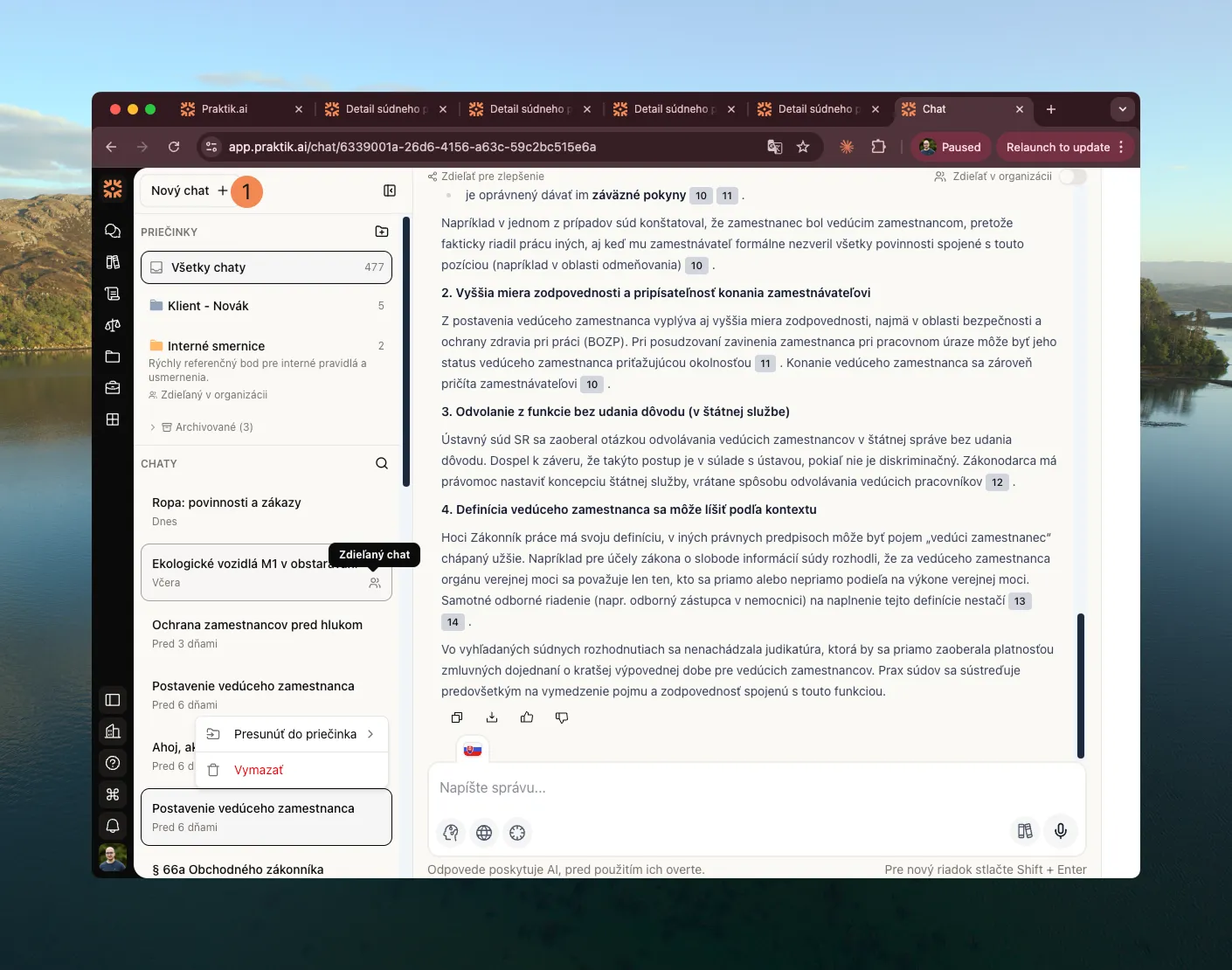
1. Creating a new chat
Section titled “1. Creating a new chat”Click the “New chat” button at the top of the sidebar. An empty conversation opens where you can enter a question.
2. Hiding the sidebar
Section titled “2. Hiding the sidebar”If you need more space to read the answer, you can hide the sidebar by clicking the icon in the upper corner. Click again to show the panel.
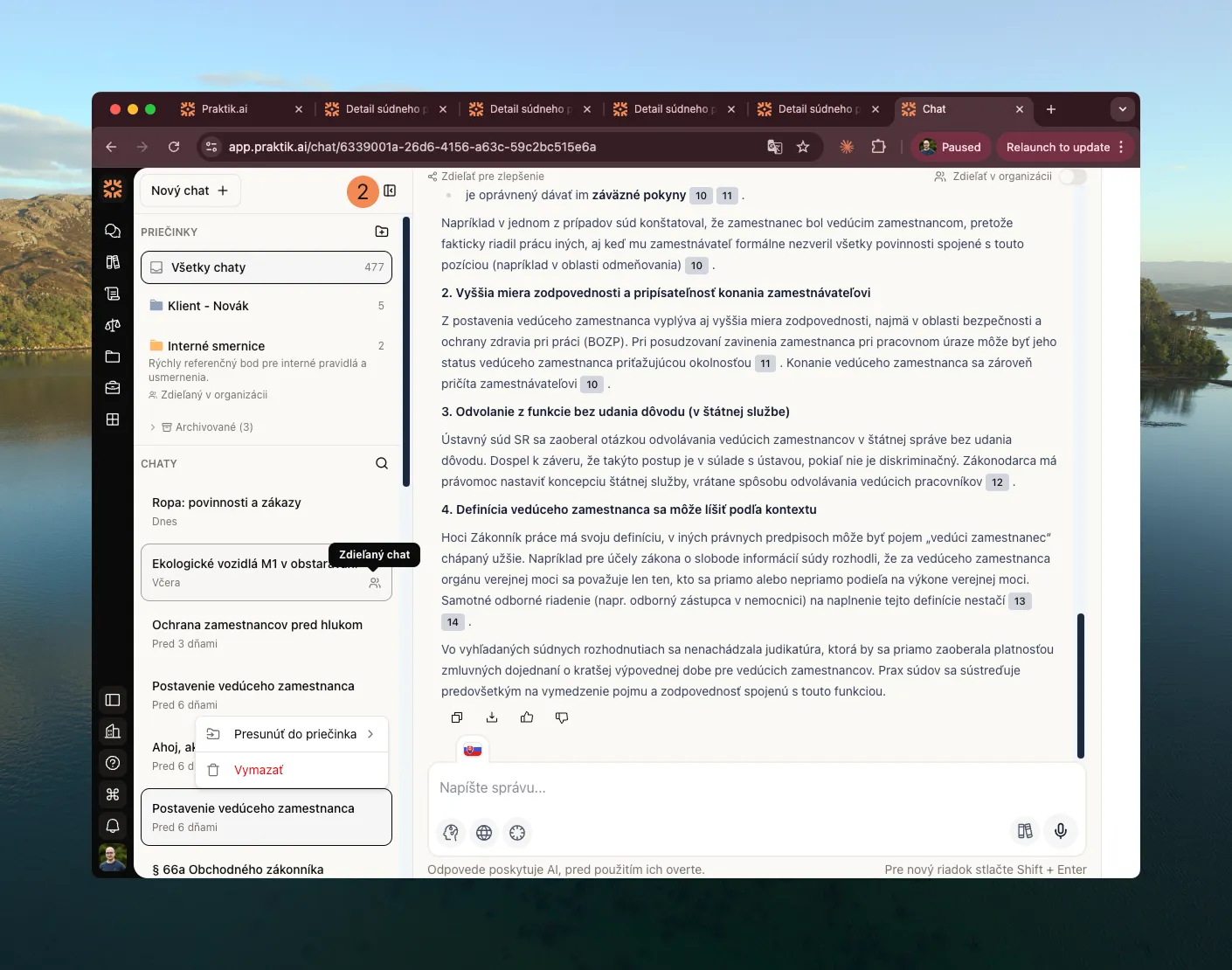
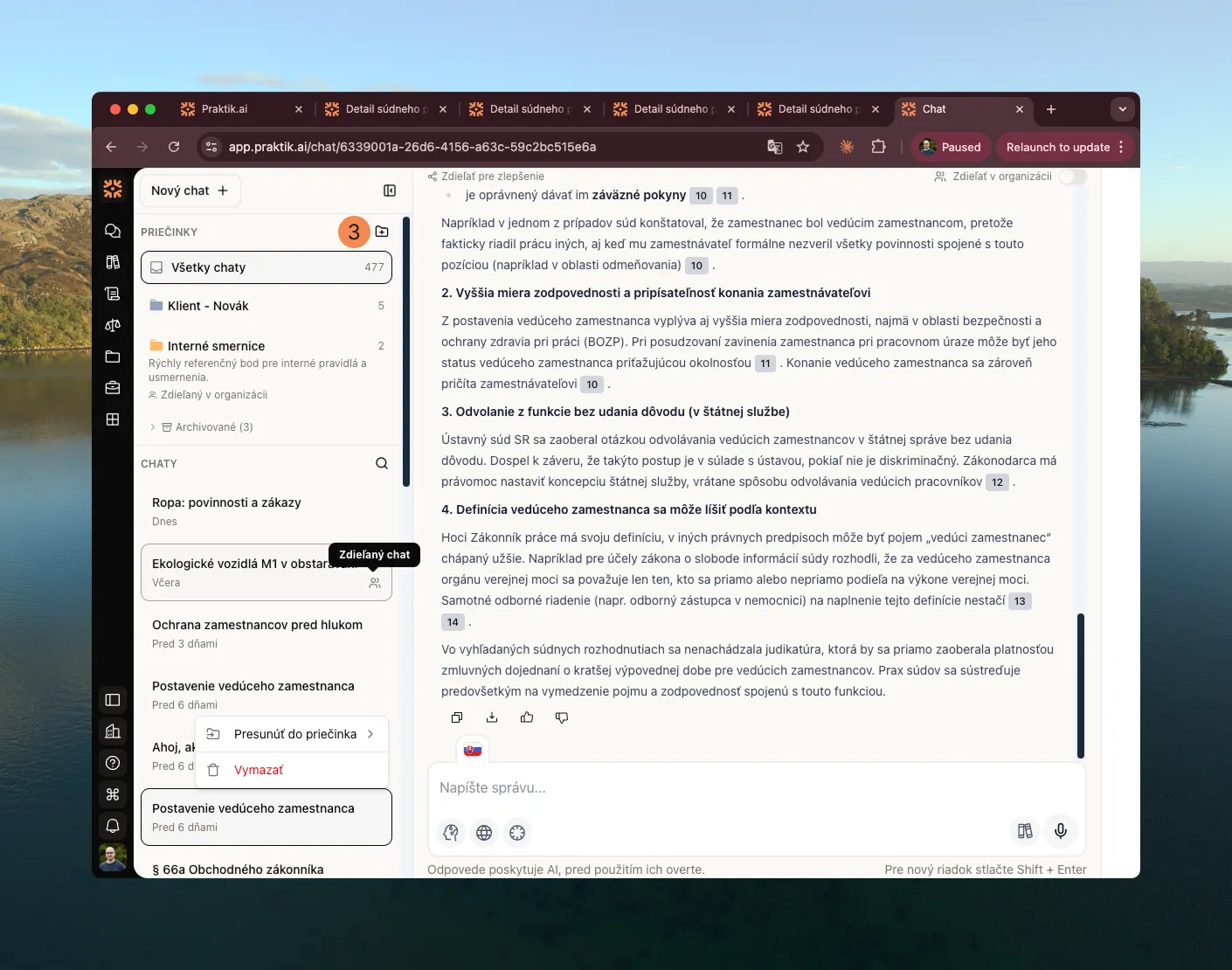
3. Creating a folder
Section titled “3. Creating a folder”For better navigation in history, you can create a folder that serves to organize chats. Click the folder icon, a dialog opens where you enter the name.
You can then create chats in the folder or move existing chats into the folder.
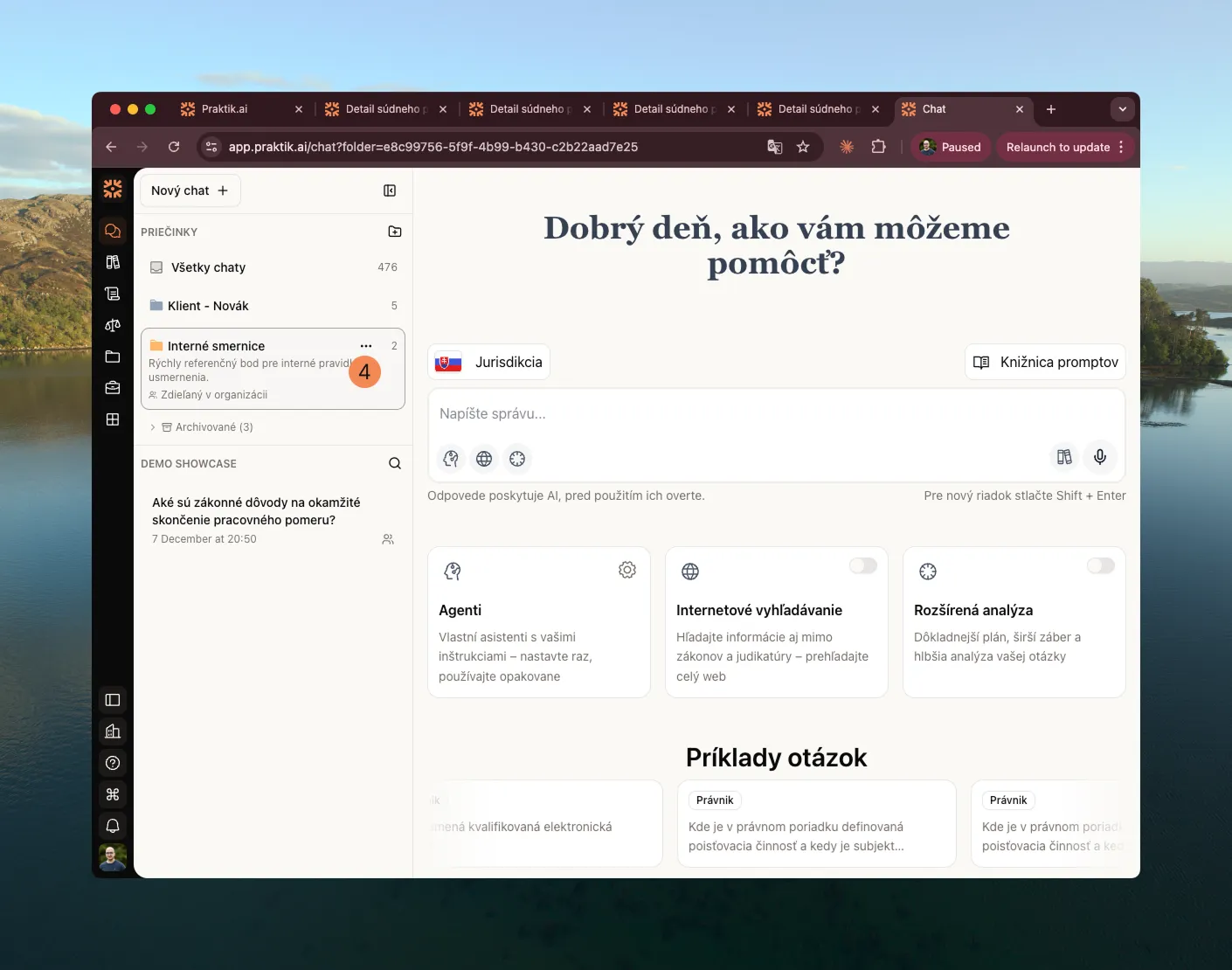
4. Editing a folder
Section titled “4. Editing a folder”Hover over the folder and click on (3 dots) then on “Edit”. You can change the name, color, or sharing settings.
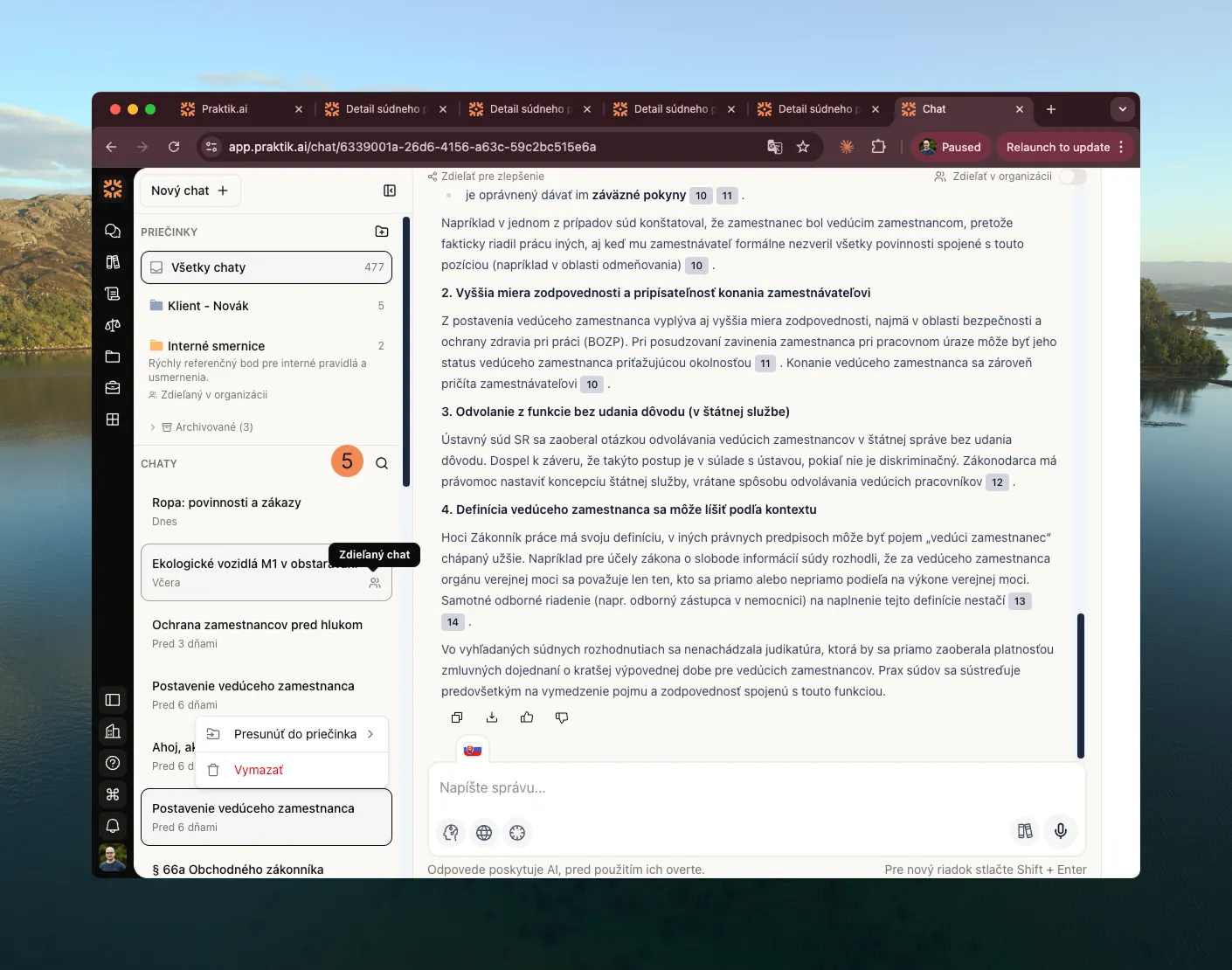
5. Searching in chats
Section titled “5. Searching in chats”Enter a keyword or phrase in the search field in the sidebar. Praktik will display all conversations that contain the search term.
6. Moving chats to a folder
Section titled “6. Moving chats to a folder”If you want to move a chat to a folder, hover over the chat and click on (3 dots) then on “Move to folder”. Just select the folder you want to move the chat to and confirm by clicking
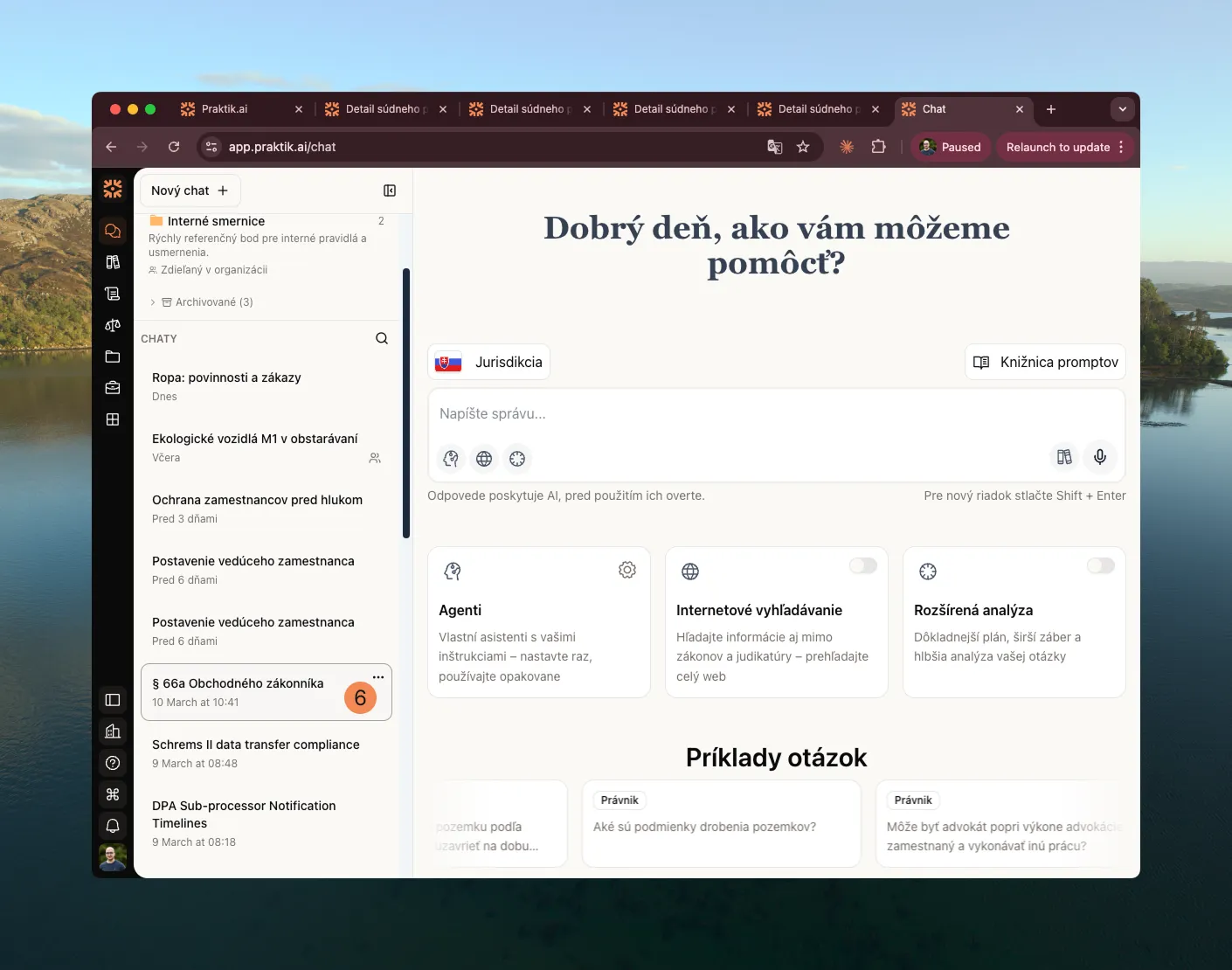
7. Deleting a chat
Section titled “7. Deleting a chat”If you want to delete a chat, hover over the chat and click on (3 dots) then on “Delete”. Praktik will ask for confirmation and then delete the chat.
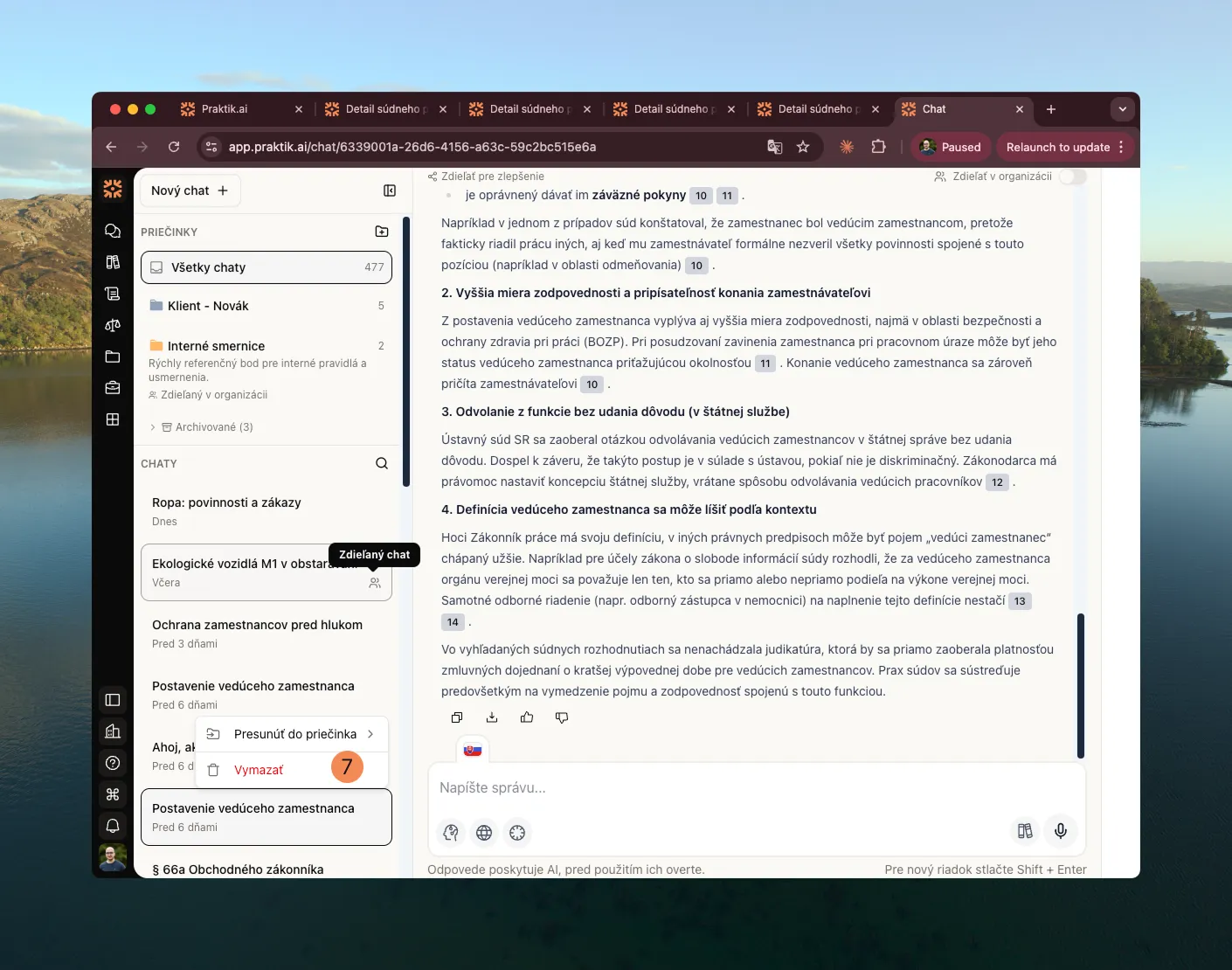
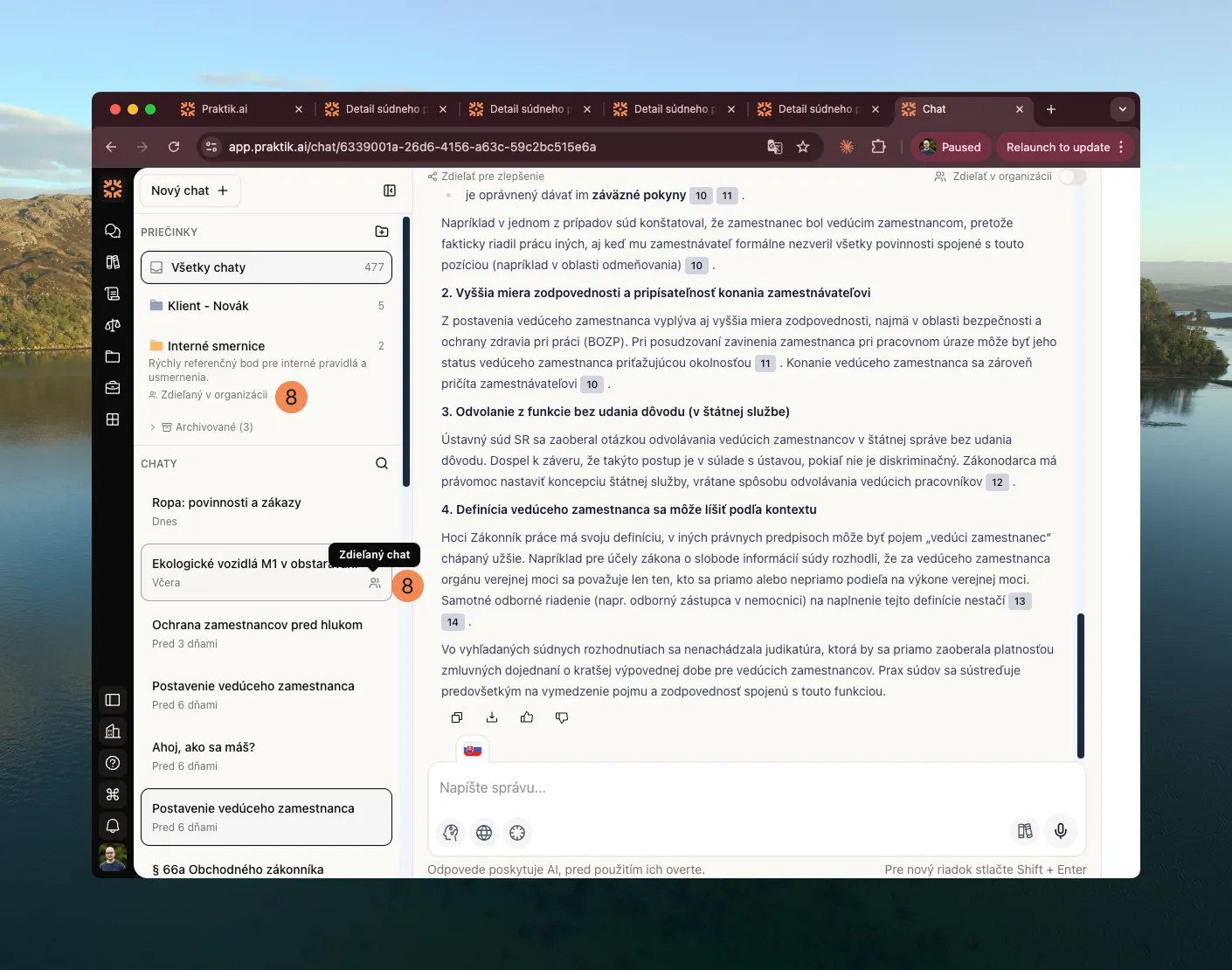
If a folder or chat is shared within the organization, you see a visual indicator — a people icon or color marker. This way you immediately know which conversations are also accessible to colleagues.