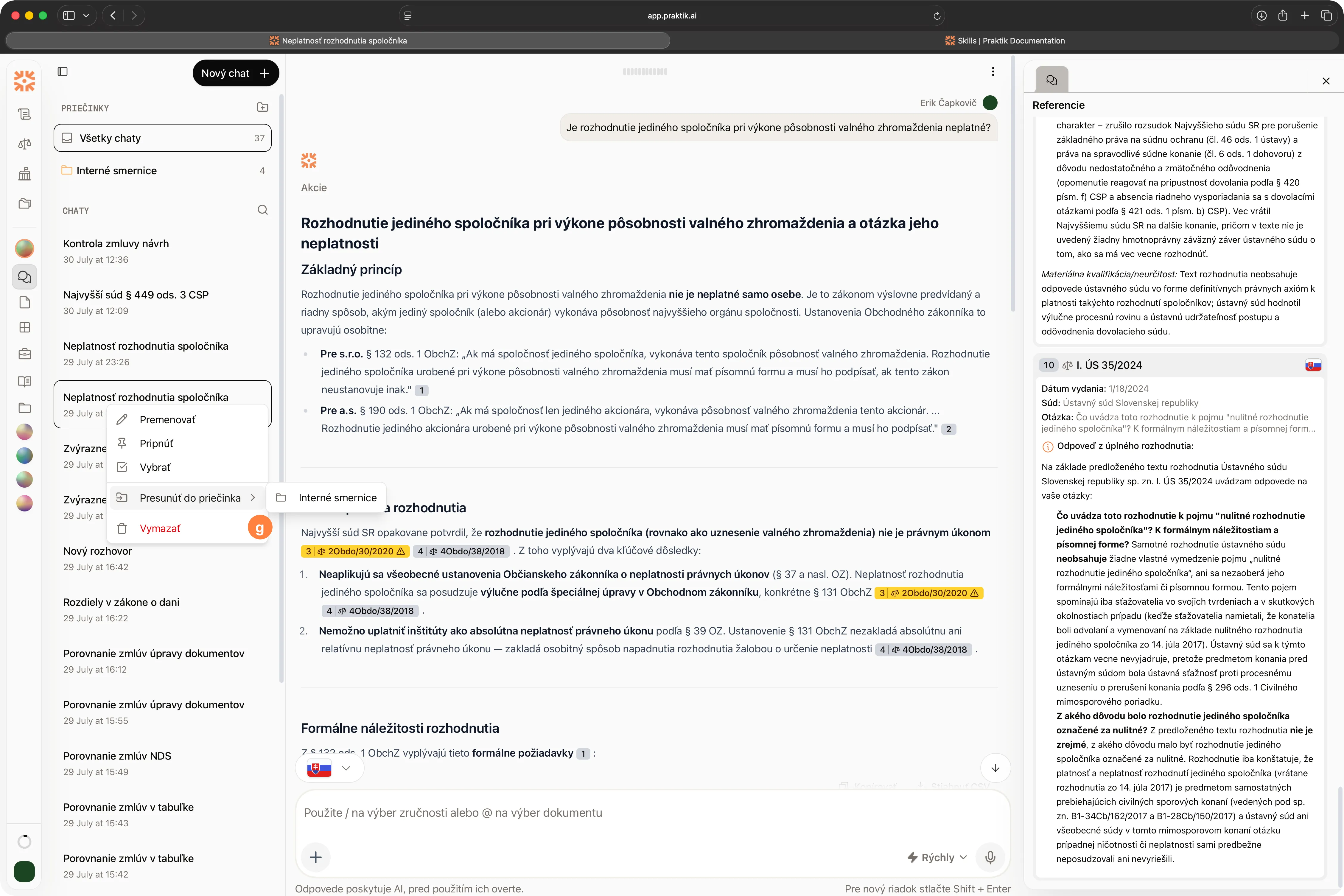
Chat is the core of Praktik - a place where a legal question turns into an answer in a minute. Praktik prioritizes verifiable legal sources and provides references where available. The result: less manual searching, more time for the work your clients pay you for.
How it works
Praktik works in three steps:
Step 1: Question analysis and source search
When you submit a question, Praktik analyzes where to look for the answer. It searches available sources: Slov-Lex, e-Sbírka, decisions from all courts, your uploaded documents, and other official sources (more about data sources). Sources are regularly updated to ensure you have access to the latest information.
Step 2: Clarifying questions
If Praktik needs more context - either based on your original question or the data it found - it will ask you a clarifying question. This ensures the answer will be accurate and relevant.
Step 3: Generating an answer with references
Praktik generates an answer based on the information found. Where possible, the answer includes links to specific sections of legislation, court decisions, your documents, or other official sources. Not all parts of the answer need to have a reference - Praktik functions as an AI assistant - and, where sources are available, key claims are supported by verifiable references.
Chat controls
Chat in Praktik offers several tools that allow you to customize the way you search and work with information.
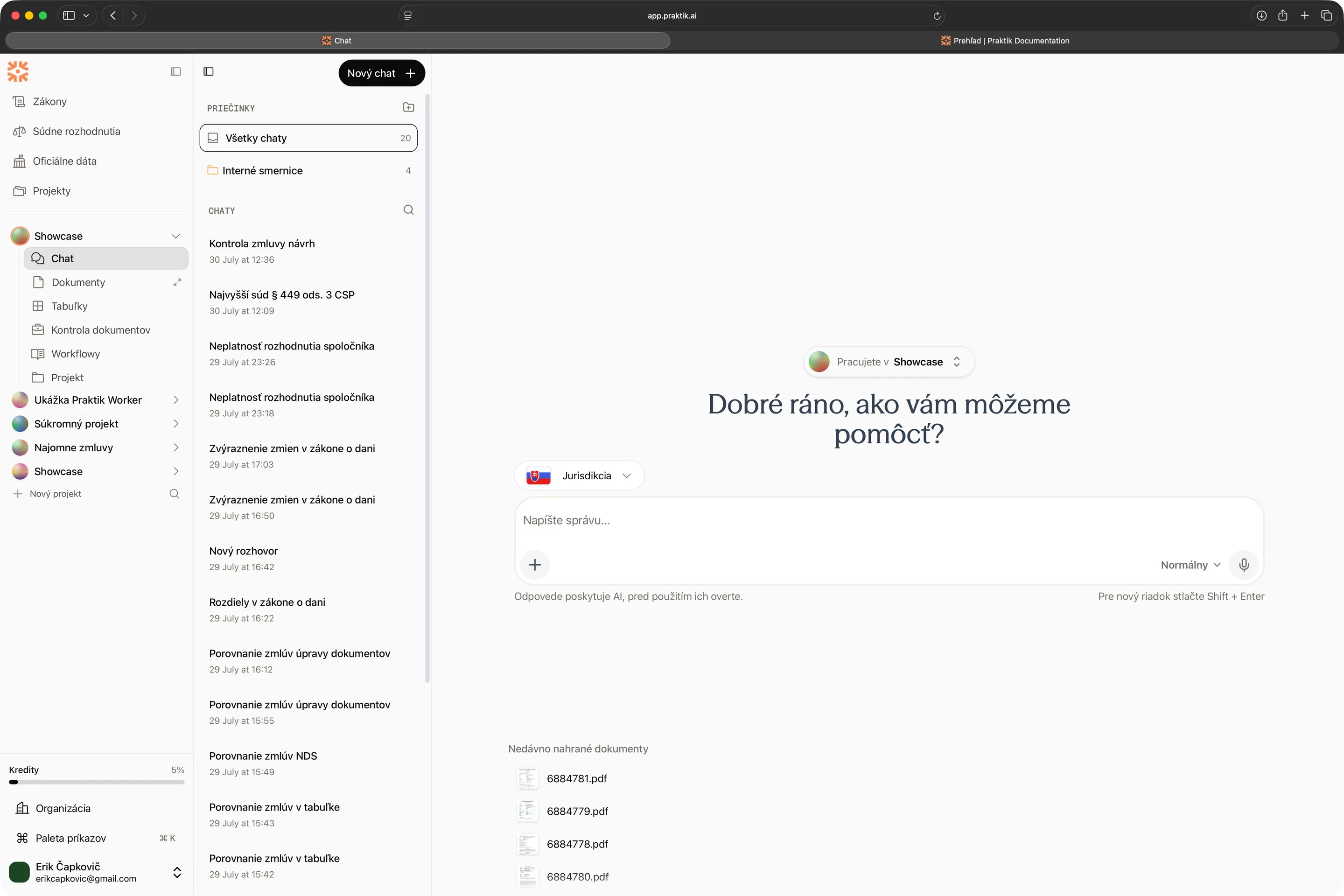
1. Jurisdiction configuration
Selecting jurisdictions determines which legal systems Praktik draws from. Sources are available for Slovakia, Czechia, and the European Union. In all three jurisdictions, you can work with legislation and court decisions; EU law sources include EUR-Lex.
You can combine jurisdictions. For a cross-border question, for example, you can use Slovak, Czech, and EU sources at the same time.
You can change jurisdiction during the conversation. If you’ve already received an answer based on Slovak sources and want to compare it with Czech regulations, switch the jurisdiction and ask: “How is this addressed in Czech legislation?” Praktik will search for information in the new sources and respond with references to Czech regulations.
Each reference in the answer shows which jurisdiction it comes from.
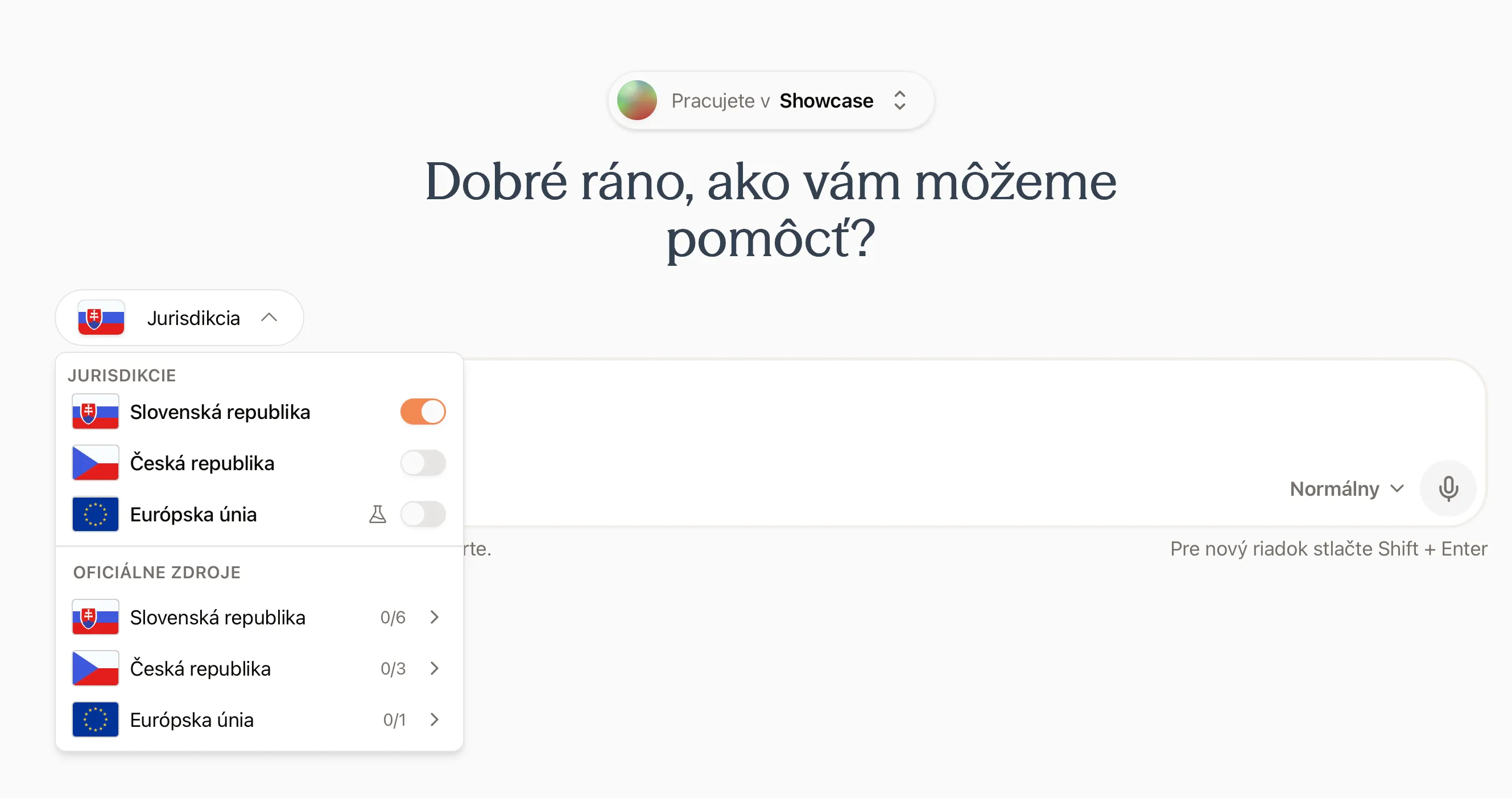
In the Official sources section of the jurisdiction selector, you can enable additional configured sources, such as FS SR, NBS, MPK, ÚOOÚ ČR, EDPB, and many more.
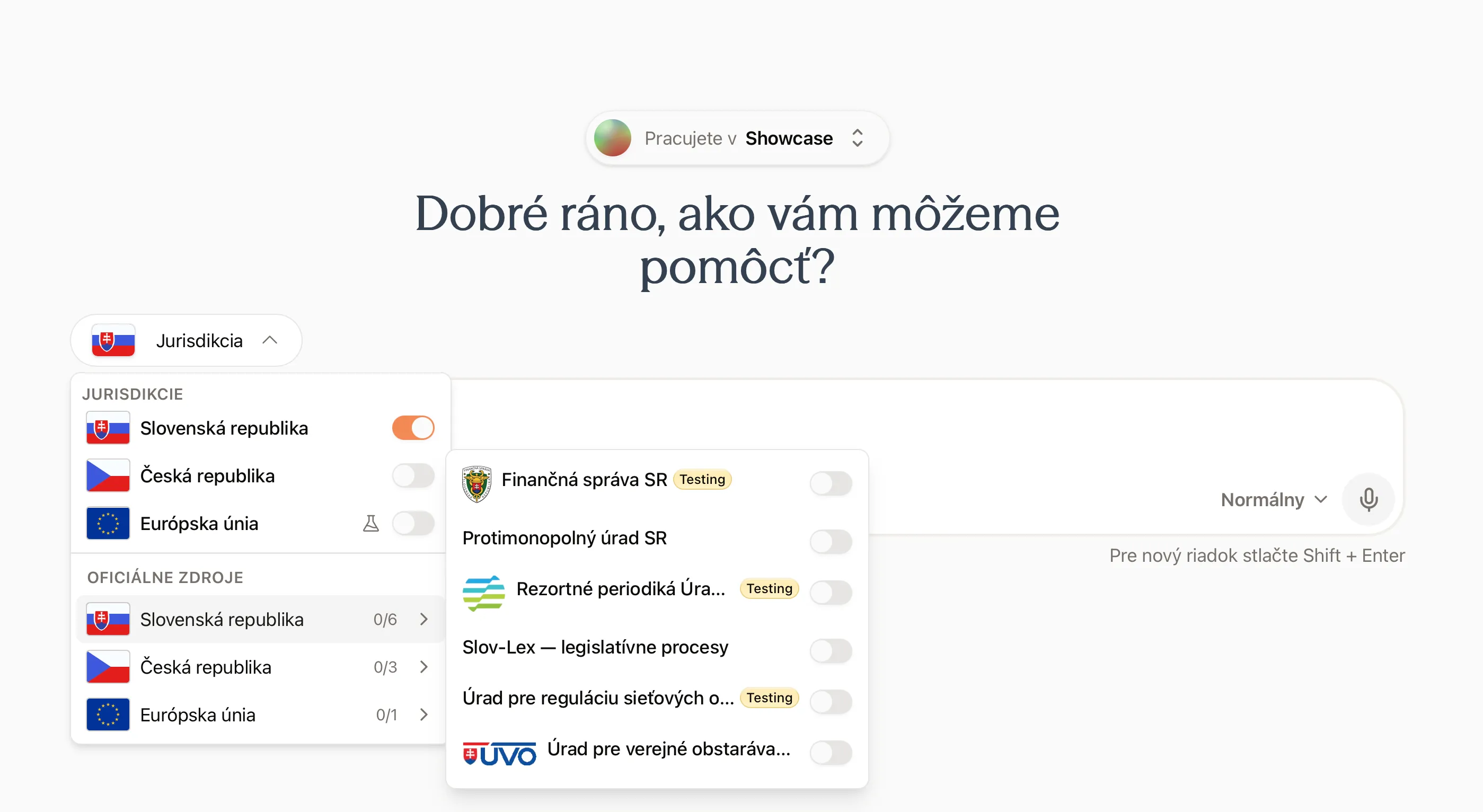
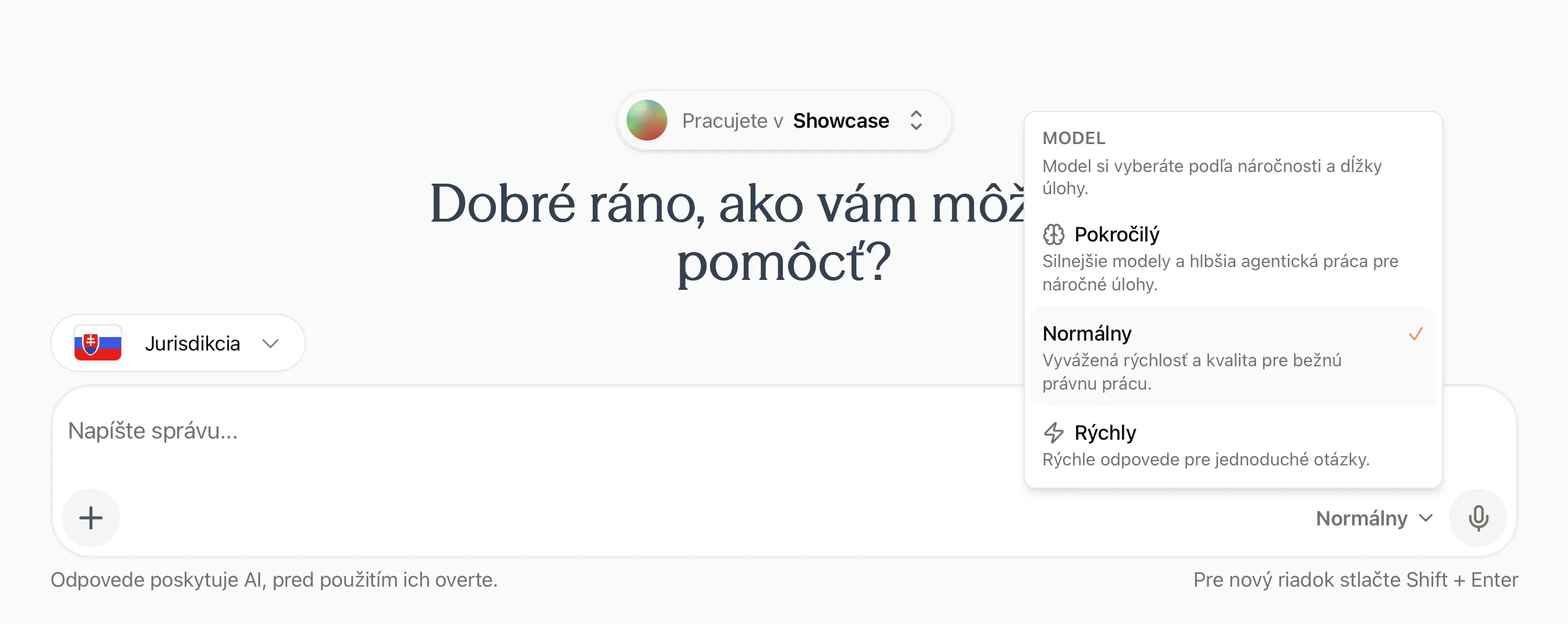
2. Model selection
Use the model selector in the composer to choose Advanced, Normal, or Fast. Your selection determines the quality and speed of the model used for the task you are working on.
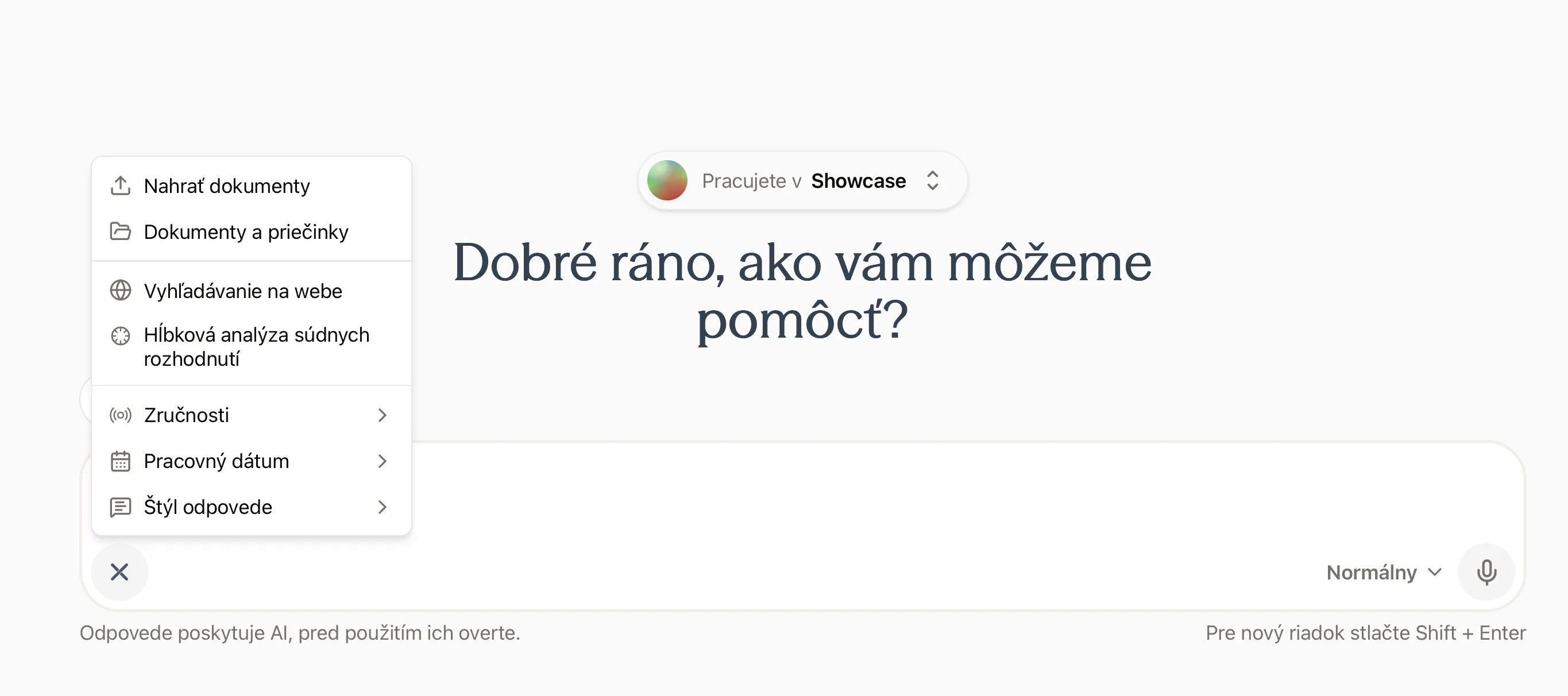
3. Additional tools and documents
Select the + button in the composer to open tools for uploading and selecting documents, internet search, deep court-decision analysis, Skills, working date, and response style.
Internet search
By default, Praktik searches only in verified official sources - legislation, case law, and your documents. However, if you need information not found in these sources, you can enable internet search.
When to enable internet search:
- When you need current information that Praktik has not processed yet
- When looking for opinions, expert commentary, blog discussions, or academic articles
- When you want to expand context with unofficial sources
Once enabled, Praktik will search the internet and include information from websites in the answer. Each reference to an internet source includes a URL so you can verify the content.
Deep court-decision analysis
Deep court-decision analysis starts Deep Research for questions that require examining broader judicial practice. The agent proposes a research plan and, once you approve it, can search and analyze hundreds to thousands of court decisions to produce a comprehensive analysis with references.
Deep Research How deep court-decision analysis worksWorking with documents
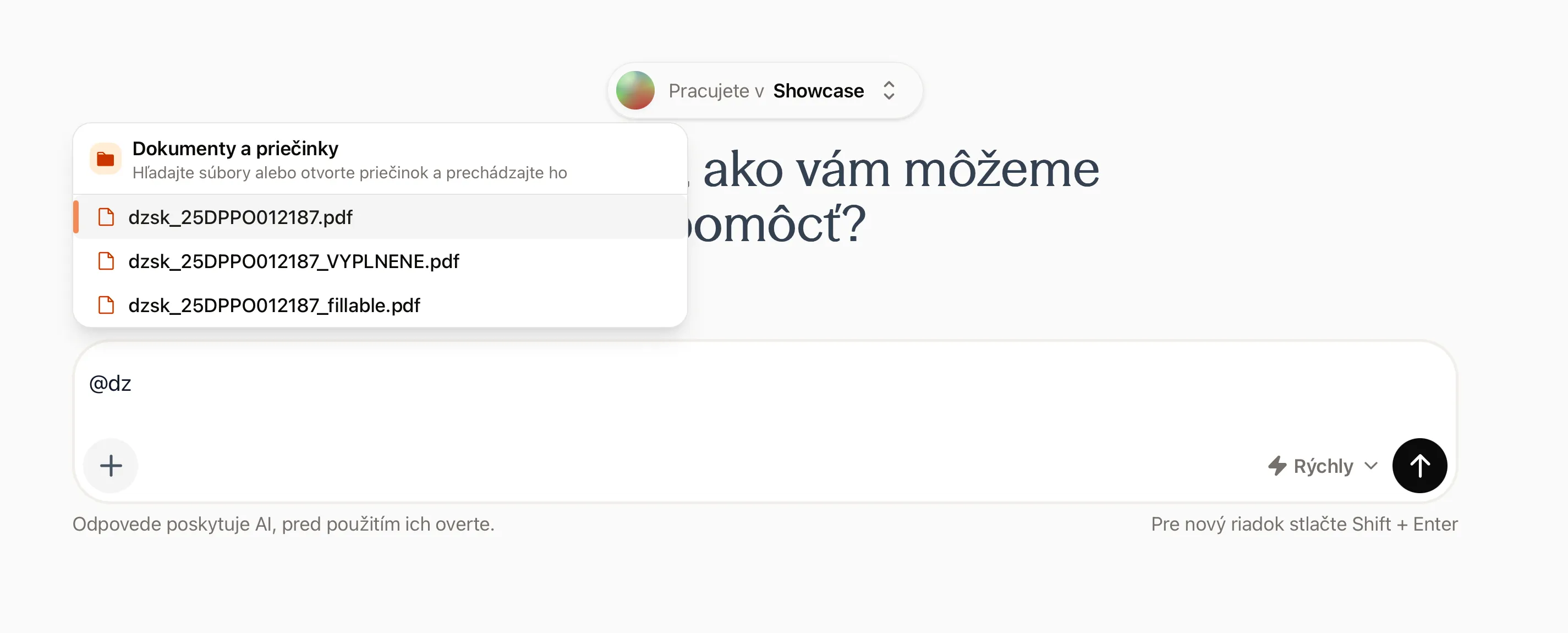
Praktik allows you to work with your own documents - contracts, files, internal guidelines, correspondence. You can either upload documents directly in chat or use documents you uploaded previously.
Uploading a new document: Select Upload documents in the + menu or drag a file into the chat window. Praktik will load the document and incorporate it into context. When you ask a question, it will also search this document and reference it in the answer.
Using previously uploaded documents: If you uploaded documents in the past (e.g., in another conversation or in central storage), select Documents and folders and add them to the current conversation without re-uploading.
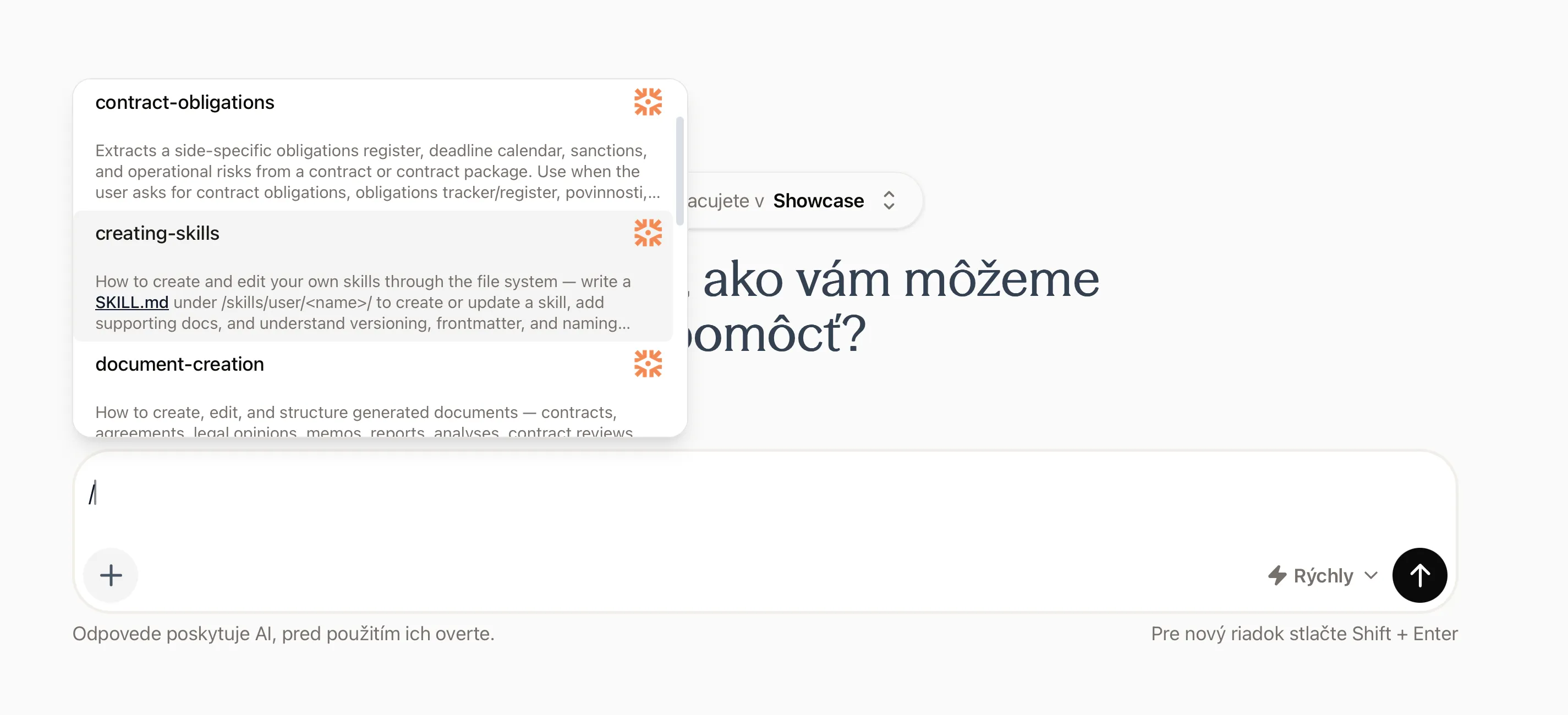
Skills
Type / in the composer or open Skills from the + menu to choose an available Skill. A Skill adds prepared instructions or a workflow for recurring tasks to the conversation.
Working date
A working date anchors all legislation lookups to the selected date. It is useful, for example, when reviewing a contract or legal question under the law applicable on a particular day. If you leave it unset, Praktik uses the latest valid version of legislation.
Answer style
Use Answer style to choose how Praktik should respond. You can select a concise, detailed, analytical, or critical answer.
4. Voice input
If you don’t want to type, you can speak. Click the microphone icon and Praktik will automatically transcribe your voice to text. You can review and edit the text before sending.
Useful when formulating a complex question or when you need to quickly enter a longer context without typing.
Working with the answer
When Praktik responds, you have several options for working with the answer further.
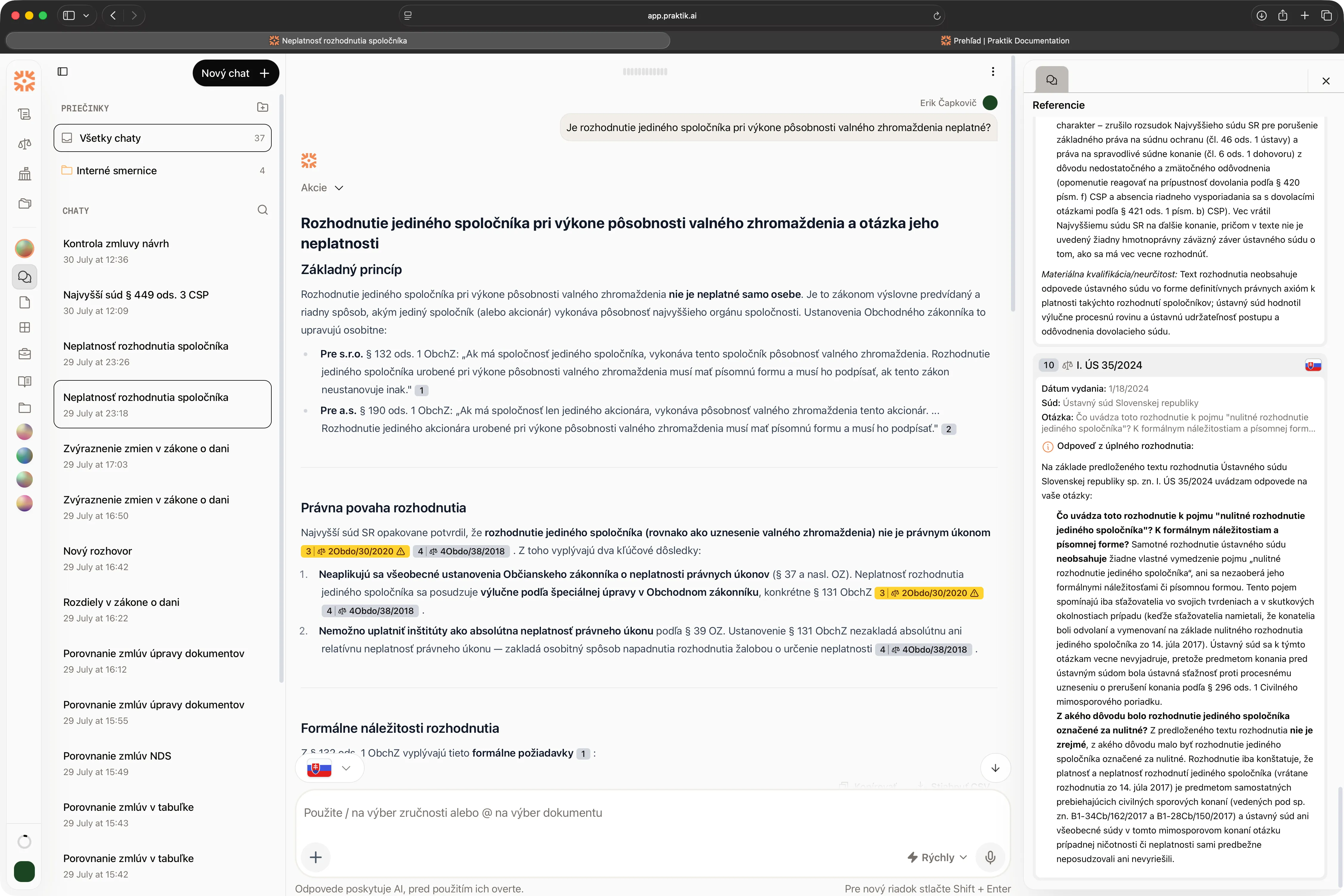
The chat menu contains the PDF export and sharing controls described below.
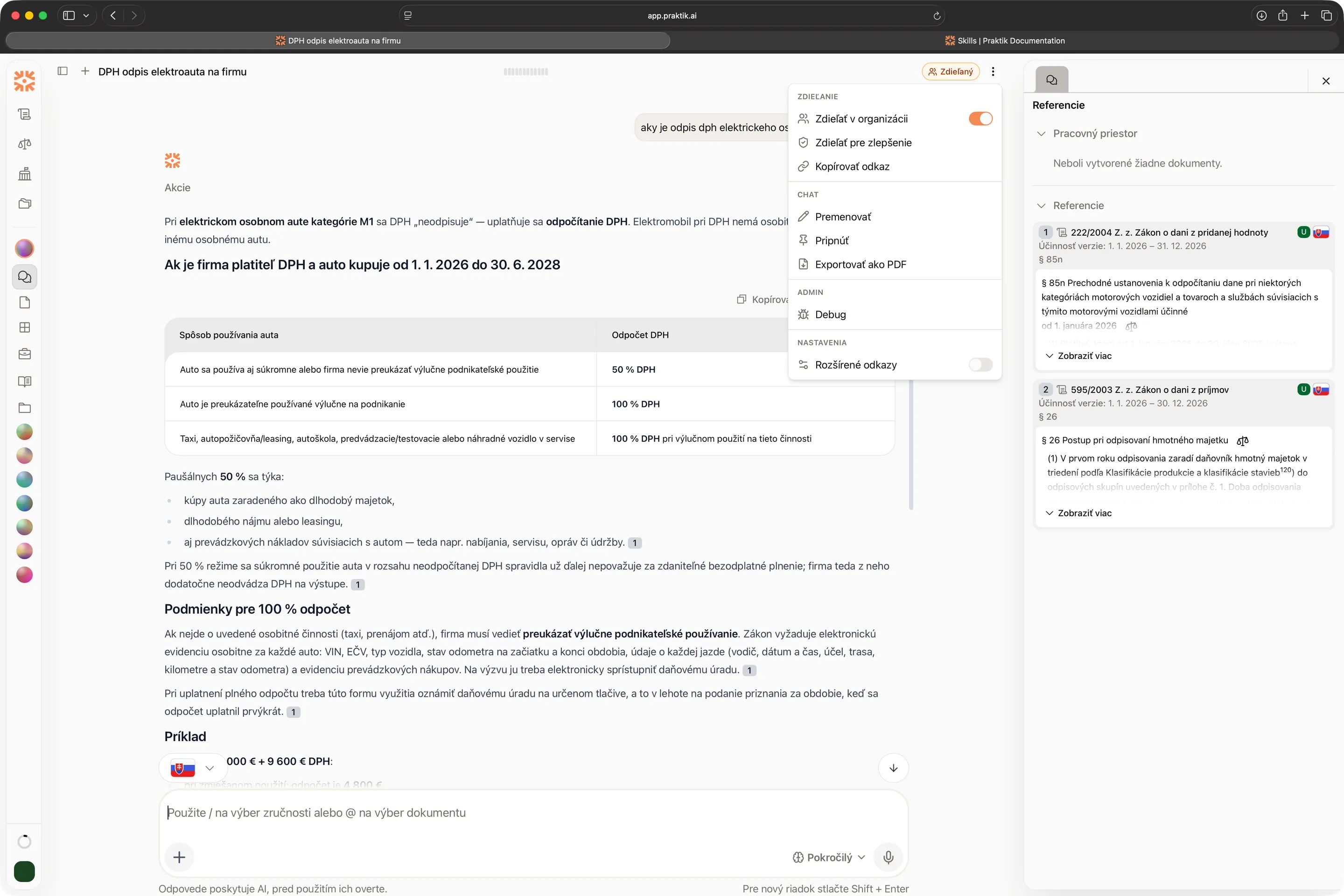
1. Download
You can download the conversation as a PDF document. The export contains all questions and answers in the conversation.
The downloaded PDF includes references used in the conversation - links to laws, court decisions, and other sources that Praktik used. You can attach the document to internal notes, send it to colleagues, or use it as a basis for a legal opinion.
2. Rating
You can provide feedback on the answer using thumbs up or thumbs down. We collect this data to have an overall view of system quality and see how changes to the system affect results. This helps us improve Praktik and identify areas where we can be more accurate.
Submitting feedback does not mean we have access to the answer or question.
3. Sharing within the organization
If you work in an organization project, the owner of a root chat that is not in a folder can share it in the organization. Organization members with read access to the project can view it; members with editor access can add questions.
Useful for case collaboration, internal consultations, or when a junior lawyer needs feedback from a senior.
Organizations and sharing More about working in teams4. Share for improvement
If the answer contains an error or something doesn’t work as it should, send the conversation directly to the Praktik team. We’ll receive the entire conversation with full context - your question, the answer, and sources used - and can quickly respond and resolve the issue.
Before sharing a chat, check whether it contains personal data.
References - why they’re crucial
Chat in Praktik works on the basis of an AI system that generates answers to your questions. We actively work to minimize inaccuracies and the rate of hallucinated information is very low. However, due to the nature of AI systems, it can never be zero.
That’s exactly why Praktik adds references to individual claims in the answer. References are links to specific sections of laws, court decisions, your documents, or other official sources. Thanks to them, you know where the information comes from and can quickly verify it.
How it works:
When you hover over a reference, a preview of the original text appears. When you click on it, you go directly to the source - a paragraph in Slov-Lex, a court decision, or your document. On the right side, you see a panel with all references used in the answer.
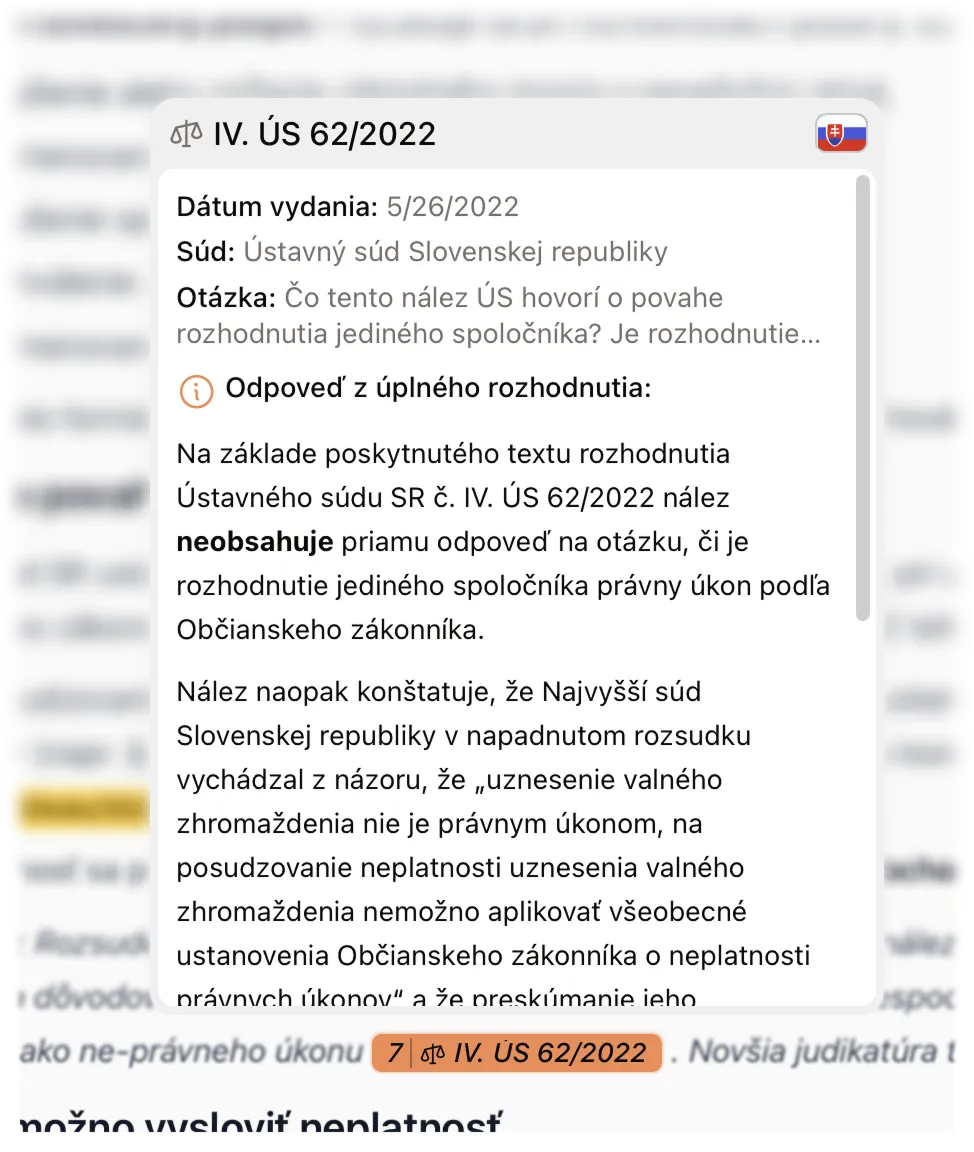
Important: Data in references are official sources - laws, court decisions, documents from verifiable databases. They are not AI-generated but directly cited from original sources. This lets you verify the information quickly. For legal conclusions with material consequences, always verify the cited sources and their application to the specific case.
References More about how to work with referencesSidebar and organization
The left sidebar is used for quick navigation in history and organization of conversations.
1. Creating a new chat
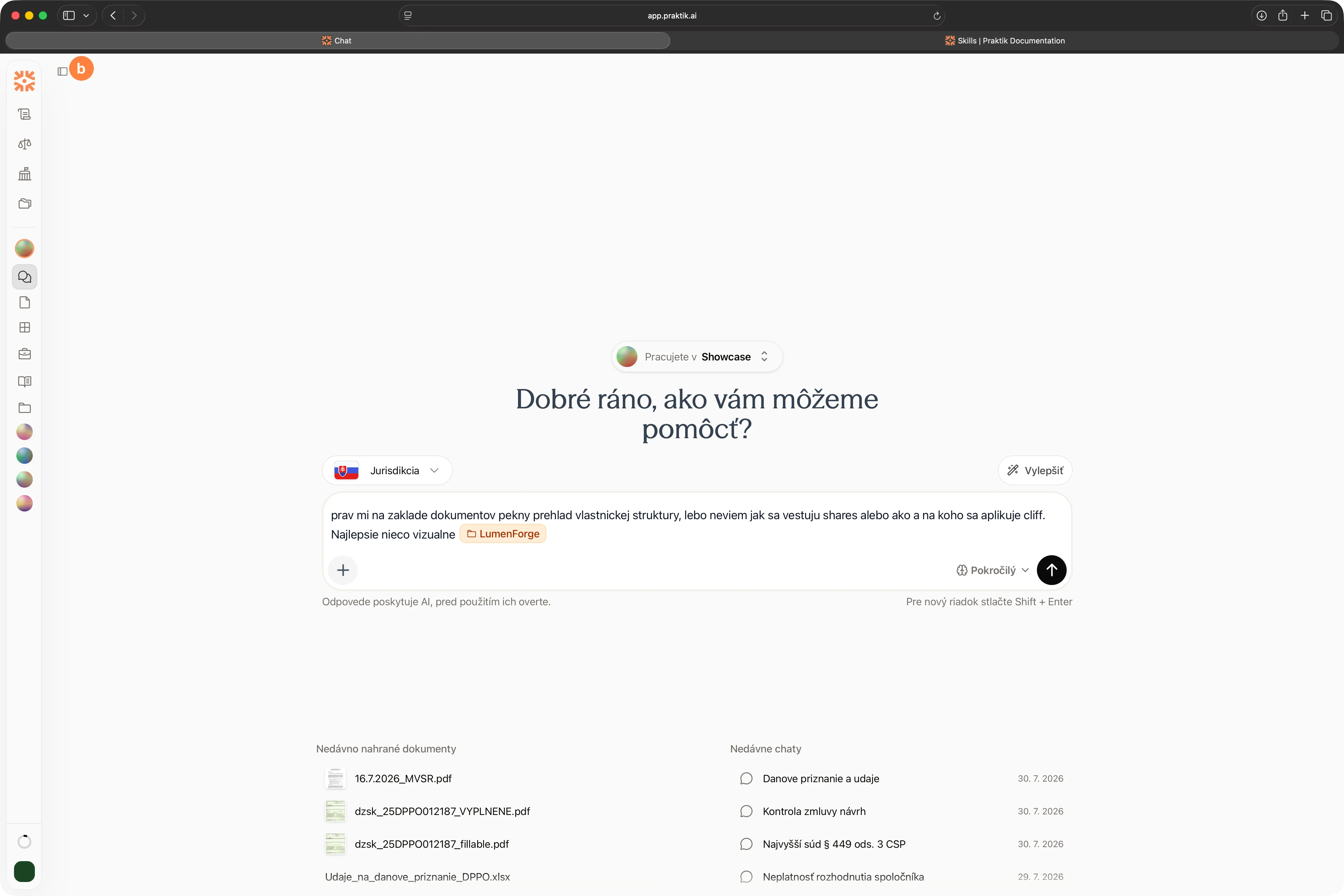
Click the “New chat” button at the top of the sidebar (a). An empty conversation opens where you can enter a question.
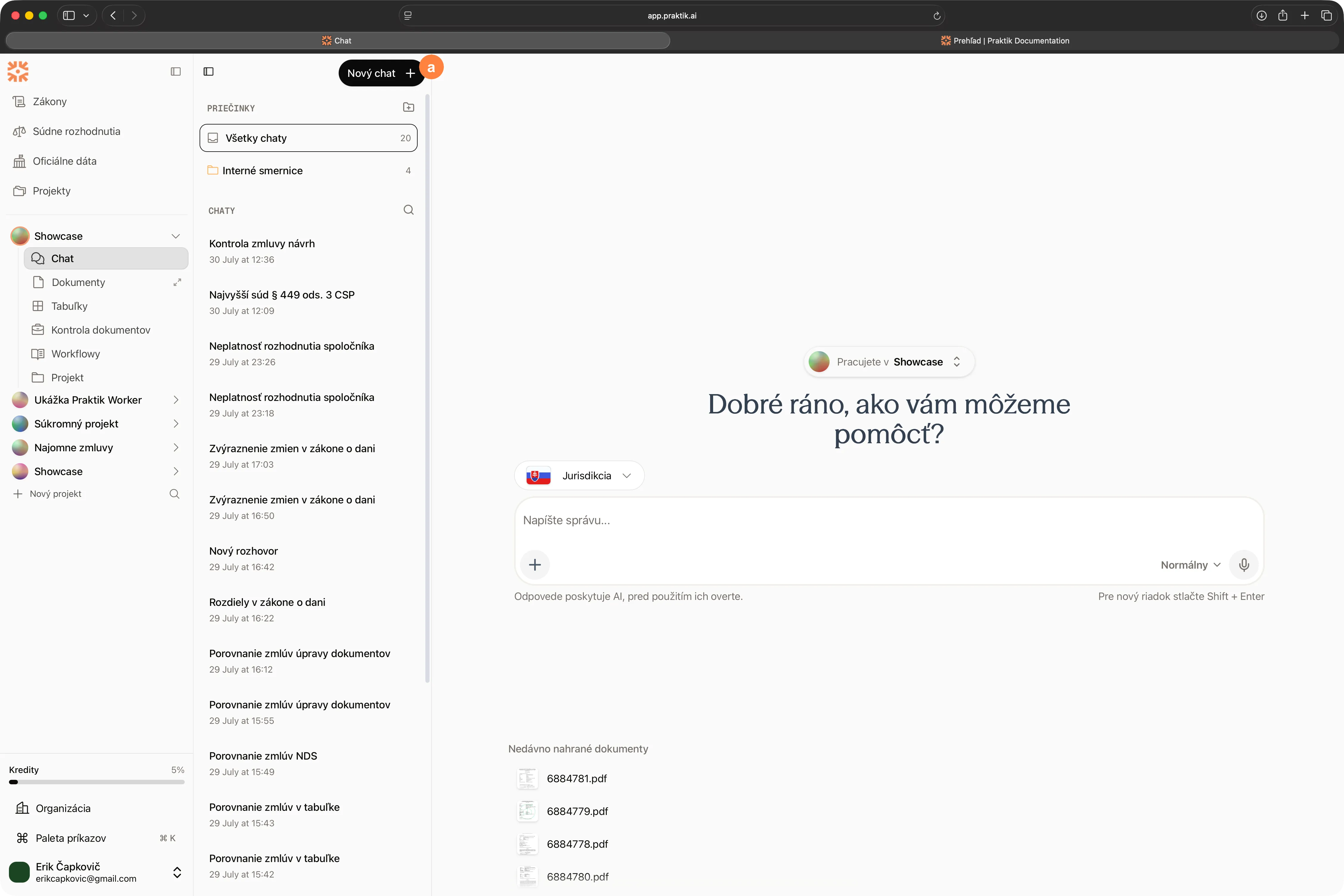
2. Hiding the sidebar
If you need more space to read the answer, you can hide the sidebar by clicking the icon in the upper corner (b). Click again to show the panel.
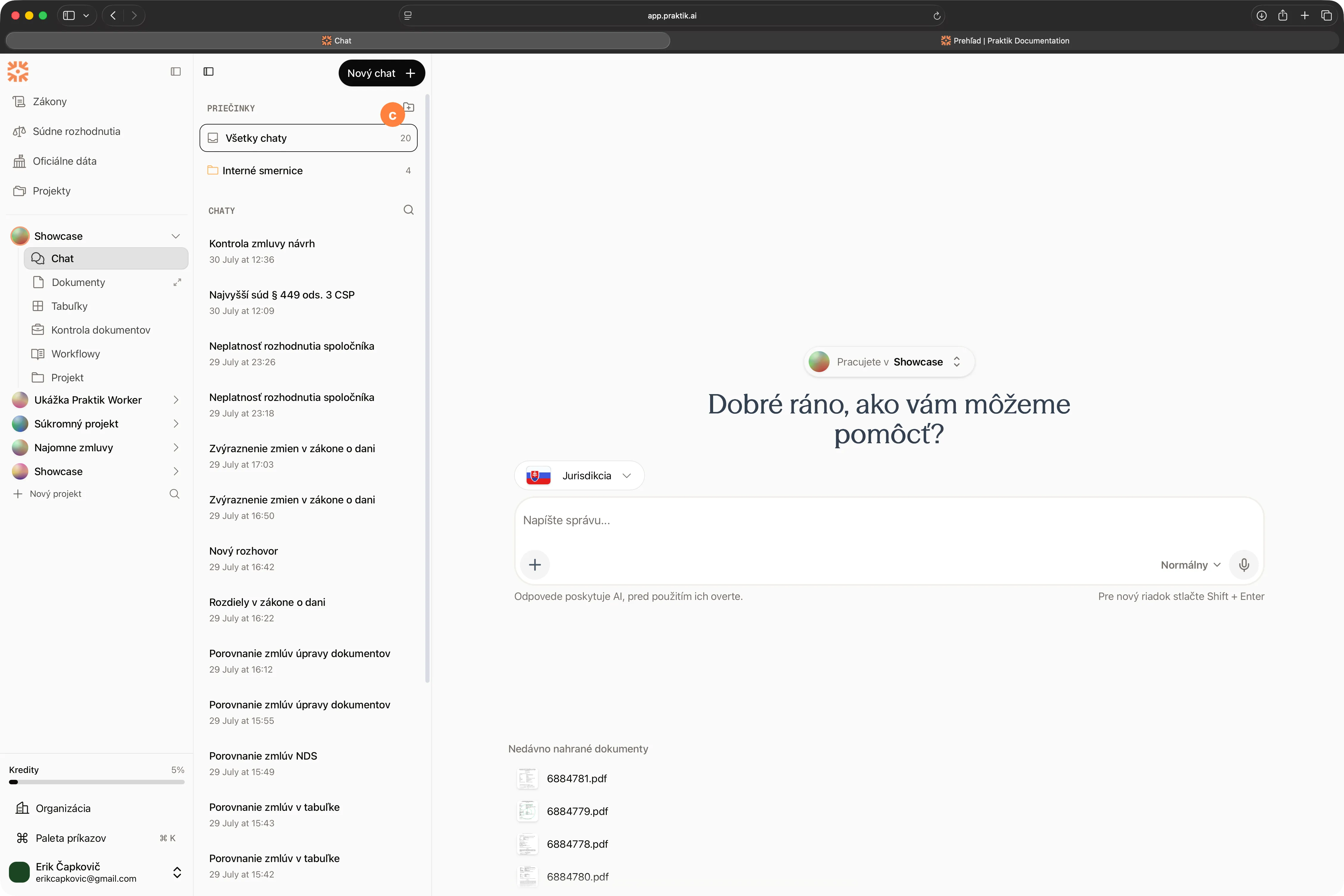
3. Creating a folder
For better navigation in history, you can create a folder that serves to organize chats. Click the folder icon (c); a dialog opens where you enter the name.
You can then create chats in the folder or move existing chats into the folder.
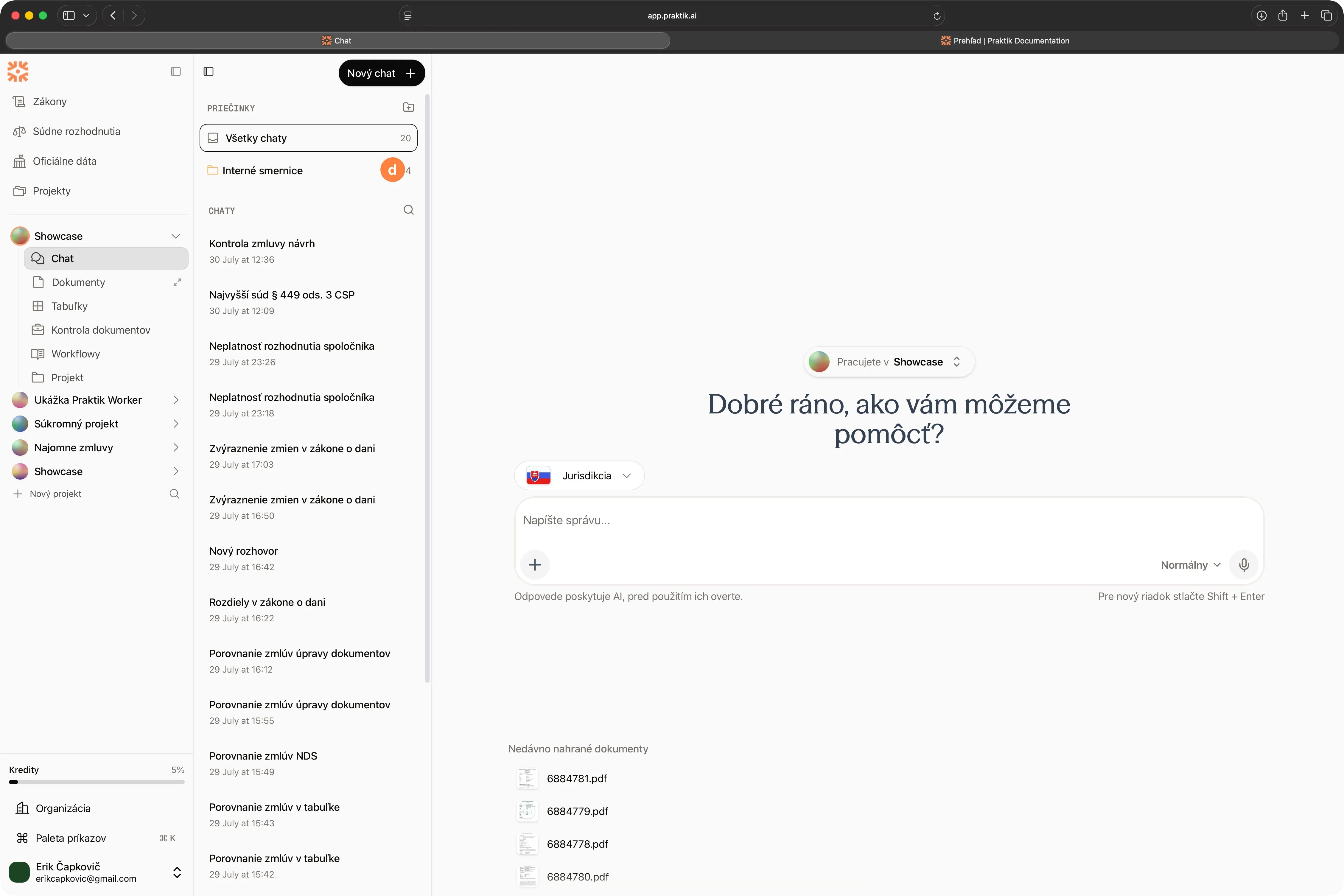
4. Editing a folder
Hover over the folder (d) and click on (3 dots) then on “Edit”. You can change the name, color, or sharing settings.
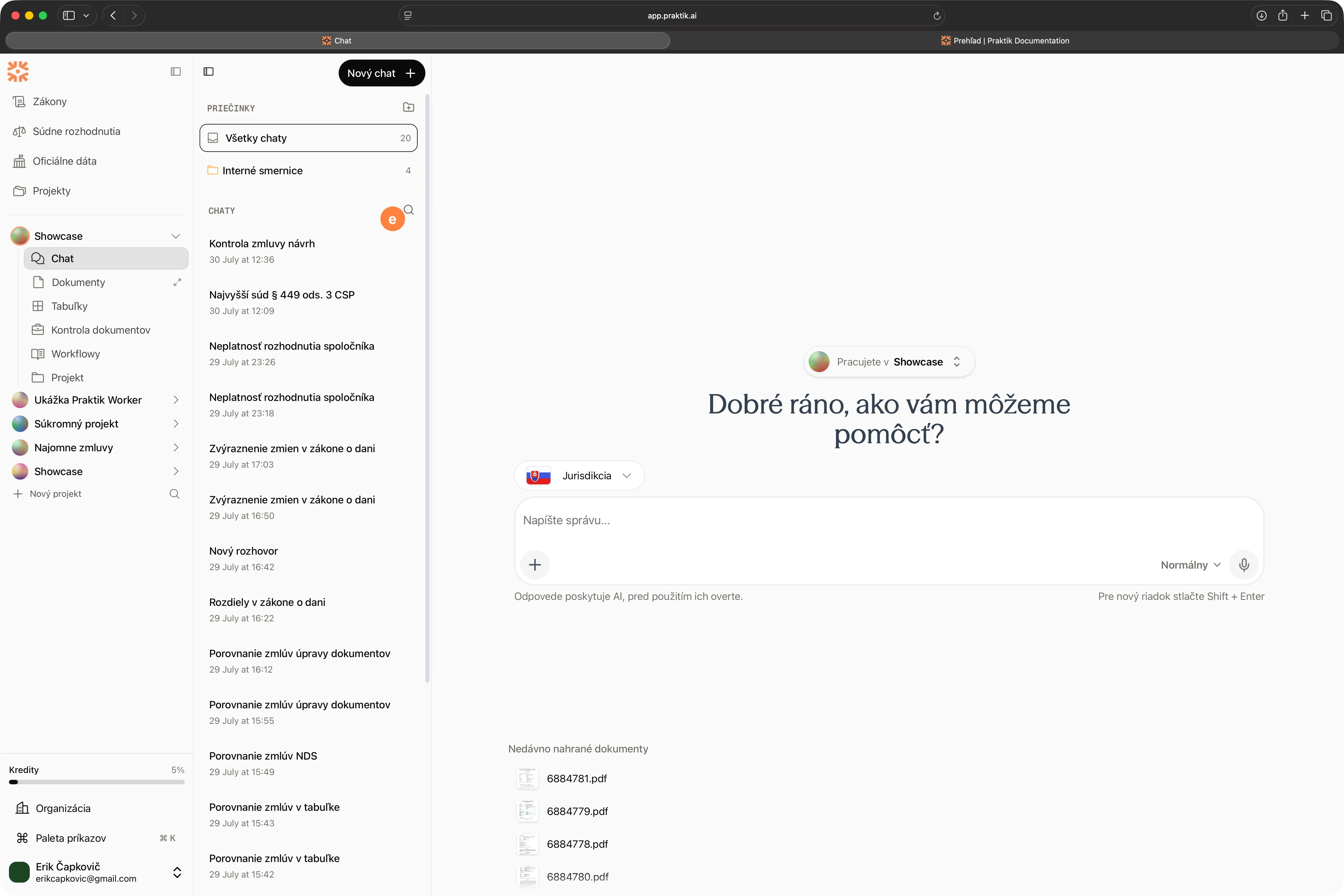
5. Searching in chats
Open chat search (e), then enter a keyword or phrase in the search field. Praktik will display all conversations that contain the search term.
6. Moving chats to a folder
If you want to move a chat to a folder, hover over the chat and click on (3 dots) then on “Move to folder” (f). Select the destination folder and confirm the move.
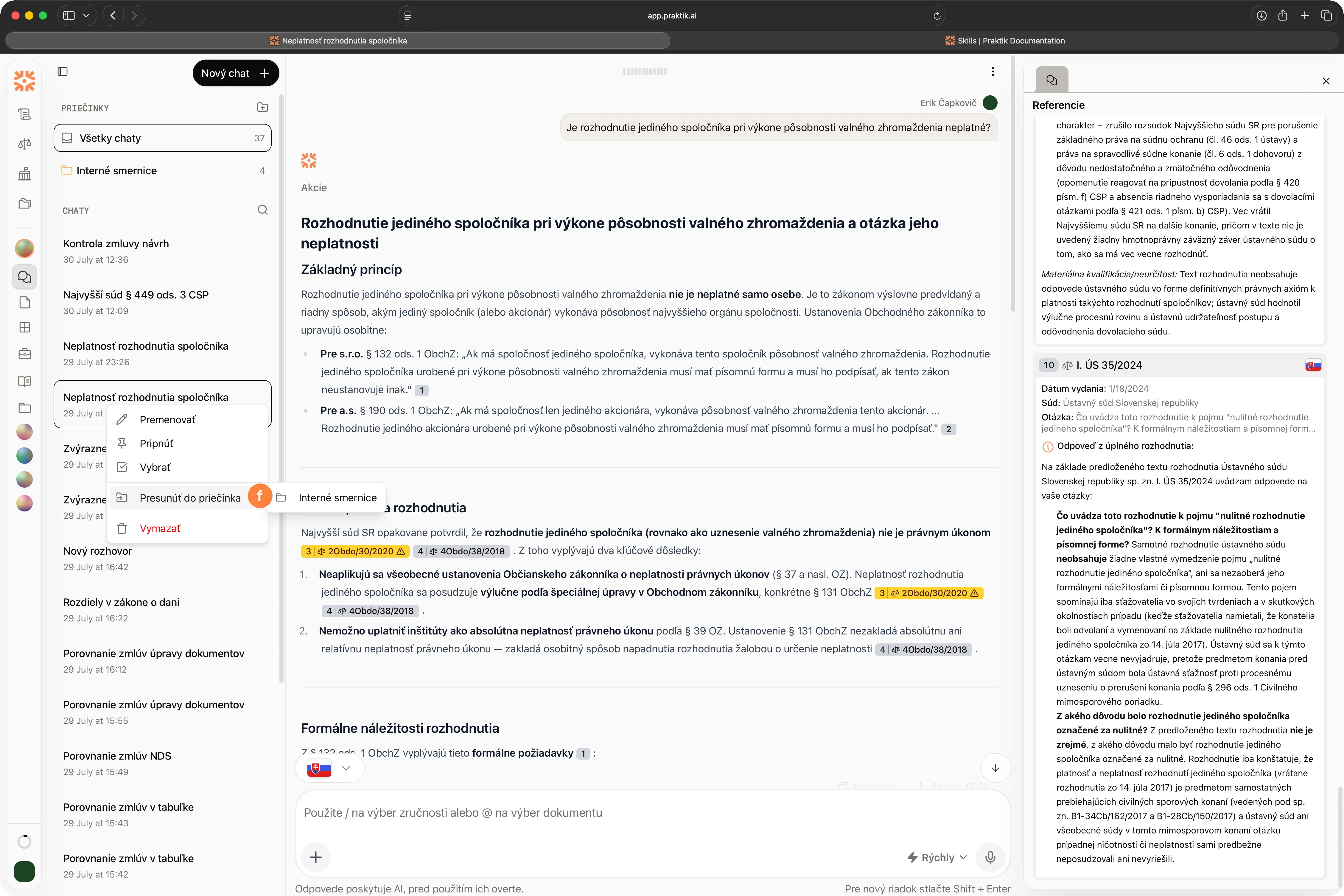
7. Deleting a chat
If you want to delete a chat, hover over the chat and click on (3 dots) then on “Delete” (g). Praktik will ask for confirmation and then delete the chat.