
The Praktik MCP server lets you connect Praktik to MCP-compatible assistants such as Claude. After setup, you can ask Claude to use Praktik as a connected tool while you work on legal research and related tasks.
Testing: The MCP connector is currently in testing. Availability, tool names, and behaviour may change while we improve the integration.
What you need
- An active Praktik account.
- Claude desktop or web app with custom connectors enabled.
- The Praktik MCP endpoint:
https://app.praktik.ai/mcpSet up the connector in Claude
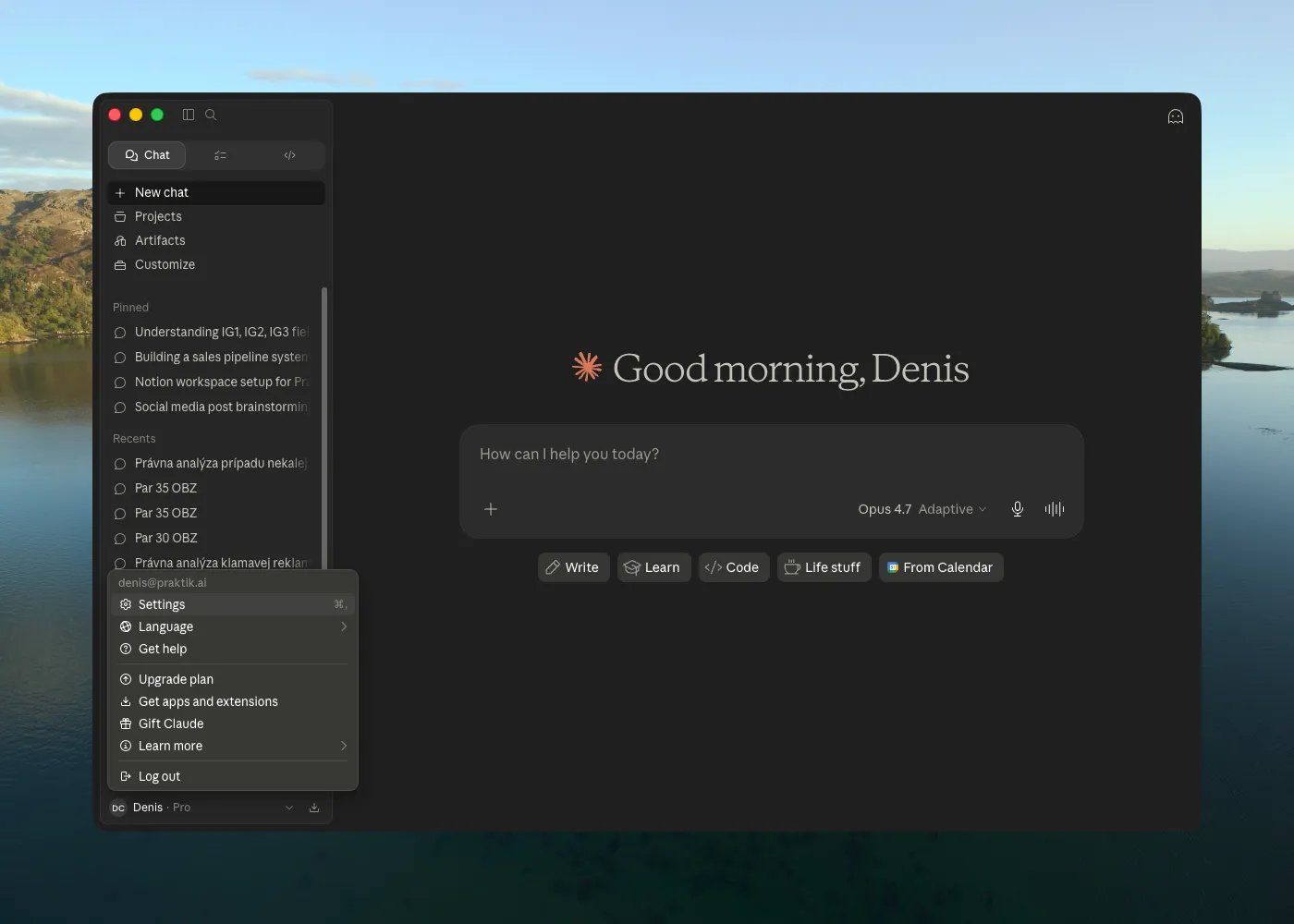
1. Open Settings
In Claude, open your account menu in the bottom-left corner and select Settings.
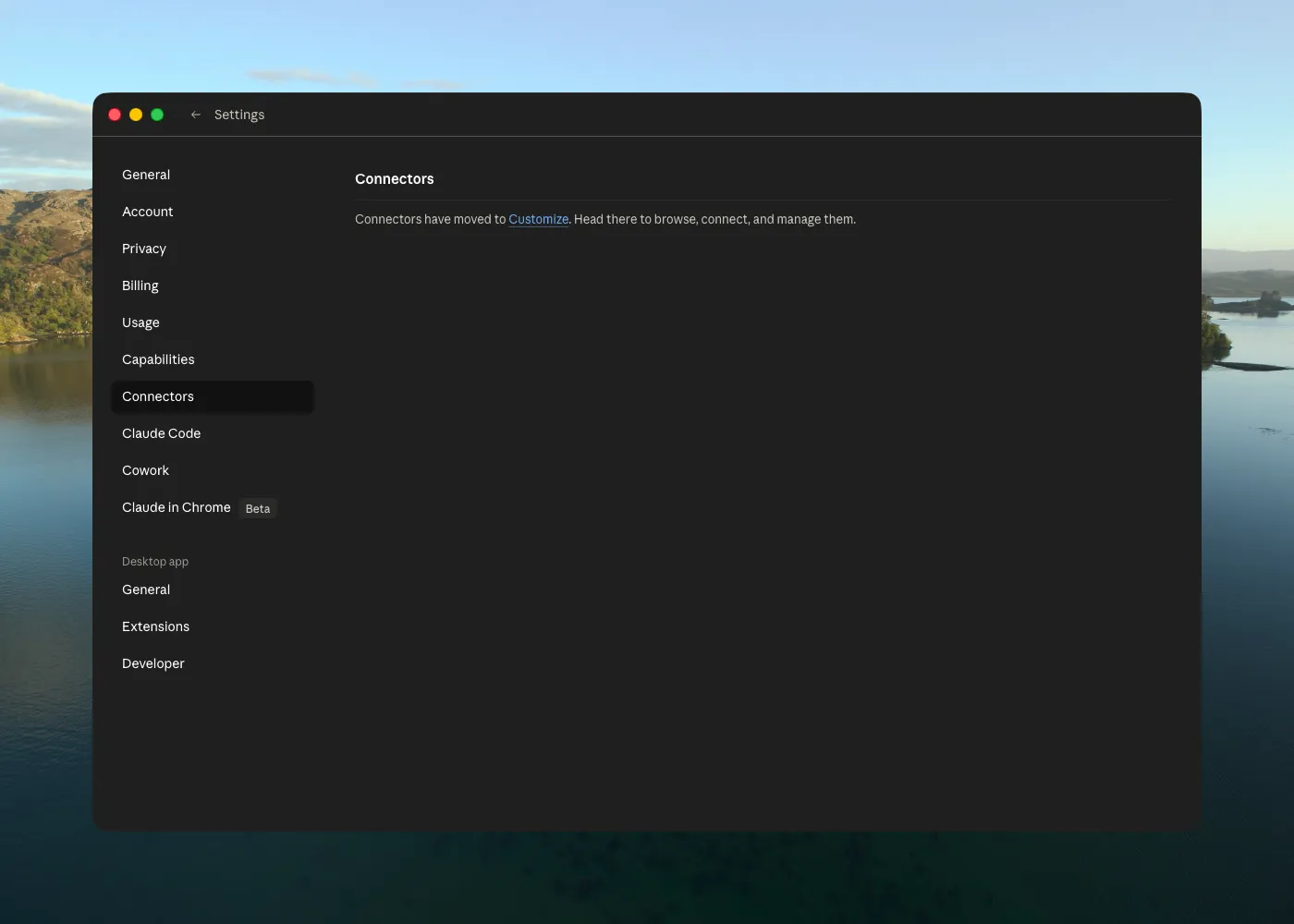
2. Go to Connectors
In Settings, open Connectors. Claude may show a message that connectors moved to Customize. Click Customize to continue.
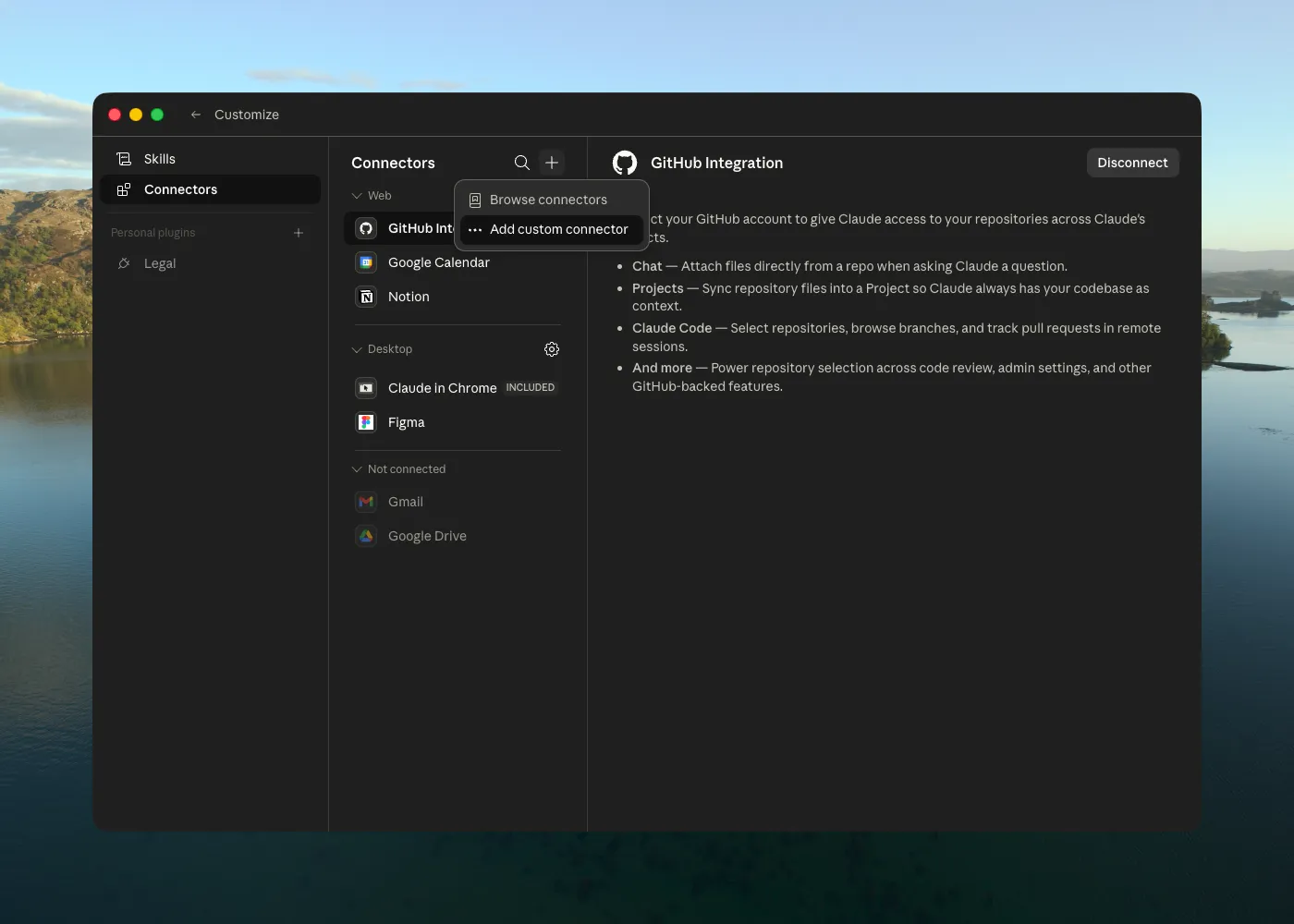
3. Add a custom connector
In Customize → Connectors, click the + button and choose Add custom connector.
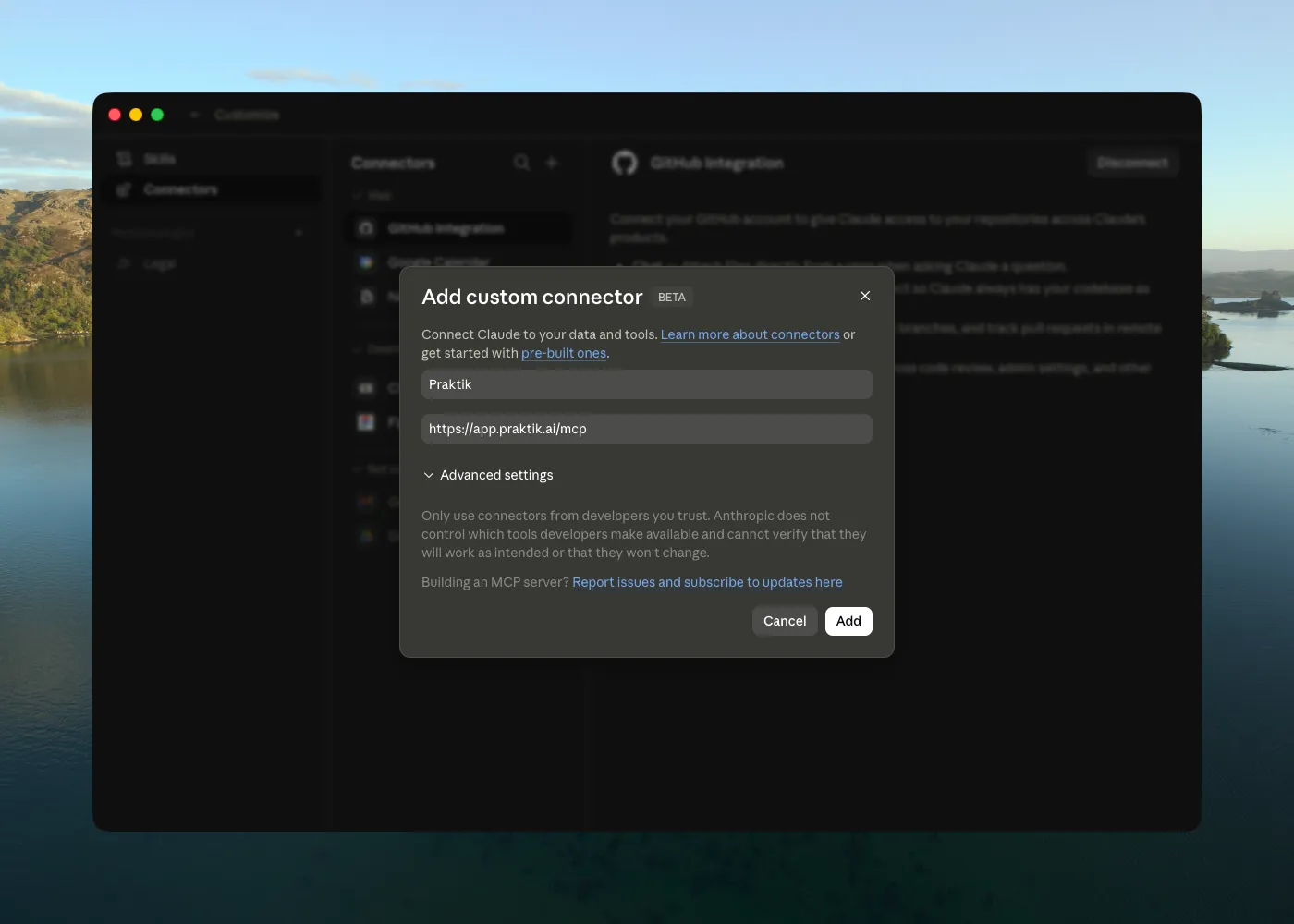
4. Enter Praktik details
Fill in the connector details:
- Name:
Praktik - URL:
https://app.praktik.ai/mcp
Then click Add.
If Claude asks you to authenticate or grant access, sign in with your Praktik account and approve the connection.
Use Praktik from Claude
After the connector is added, start a new Claude chat and ask Claude to use Praktik for the task. For example:
Use Praktik to find relevant Slovak case law for this legal question: …Use the Praktik connector to verify this legal argument against available sources.Claude should show when it is using the Praktik connector. Review the returned sources and outputs before relying on them in legal work.
Troubleshooting
- Connector is not visible: Check that custom connectors are enabled for your Claude account or workspace.
- Authentication fails: Sign out and sign in again, then add the connector again.
- Unexpected results: The connector is in testing. Try a more specific prompt and verify important conclusions in Praktik.